FEATURES · INTERACTIVE WEBPAGES
Webpage Creation Assistant in NotebookLM: create branded interactive websites in Gemini Notebook
What it does
Ultra Exporter is the first NotebookLM Chrome extension with an in-page Webpage Creation Assistant inside Studio. Instead of writing “make me a site” prompts from scratch, you pick from 8 structured purposes, 12 reference styles, color palettes, saved brand guidelines, content density, and mobile-responsive optimization—all backed by strict anti-hallucination citation rules.
Best suited for
Consultants, educators, product managers, and researchers turning Gemini Notebook sources into polished interactive webpages
Prerequisites
- Desktop Chrome with Ultra Exporter installed on notebook.google.com or notebooklm.google.com
- At least one source checked in the active notebook
Feature summary
| Item | Detail |
|---|---|
| Entry point | Create website tile at the end of the Gemini Notebook / NotebookLM Studio creation panel |
| Plan | Free + Pro |
| Free tier | 4 purposes (Comparison, Interactive explainer, Data dashboard, Project tracker), 4 styles, 4 palettes, saved local brand instructions, checked source as brand guide, 3 density levels, mobile toggle, 4 languages, and native HTML download. |
| Pro tier | 4 additional professional purposes (Client proposal, Learning center, Research review, Knowledge base), 8 advanced visual styles, Wisteria palette, custom primary brand color, and hosted fullscreen sharing. |
How to use it
- Install NotebookLM Ultra Exporter in desktop Chrome, then refresh any open NotebookLM (Gemini Notebook) tab.
- Open Create website tile at the end of the Gemini Notebook / NotebookLM Studio creation panel.
- Test on a single item first before running across a large batch.
What it does
- Reads your currently checked sources so Gemini Notebook generates only from the materials you selected.
- Provides one-click purpose examples and 12 visual style thumbnails (Clear document, Business consulting, Academic research, Dark technology, Editorial narrative, Analytical precision, and more).
- Saves reusable brand instructions locally in Chrome (up to 1,000 characters) or applies a checked notebook source as a one-off brand style reference.
- Injects strict evidence rules: separates source facts from assumptions, distinguishes missing data from zero, preserves units/dates, and cites source titles and links next to claims.
Limits to know
- Gemini Notebook itself generates the webpage and enforces your Google account compute limits.
- Brand guidelines control layout, color, typography, and tone only; they never alter source facts or execute source code.
- Always inspect generated numbers, filters, and citations before sharing externally.
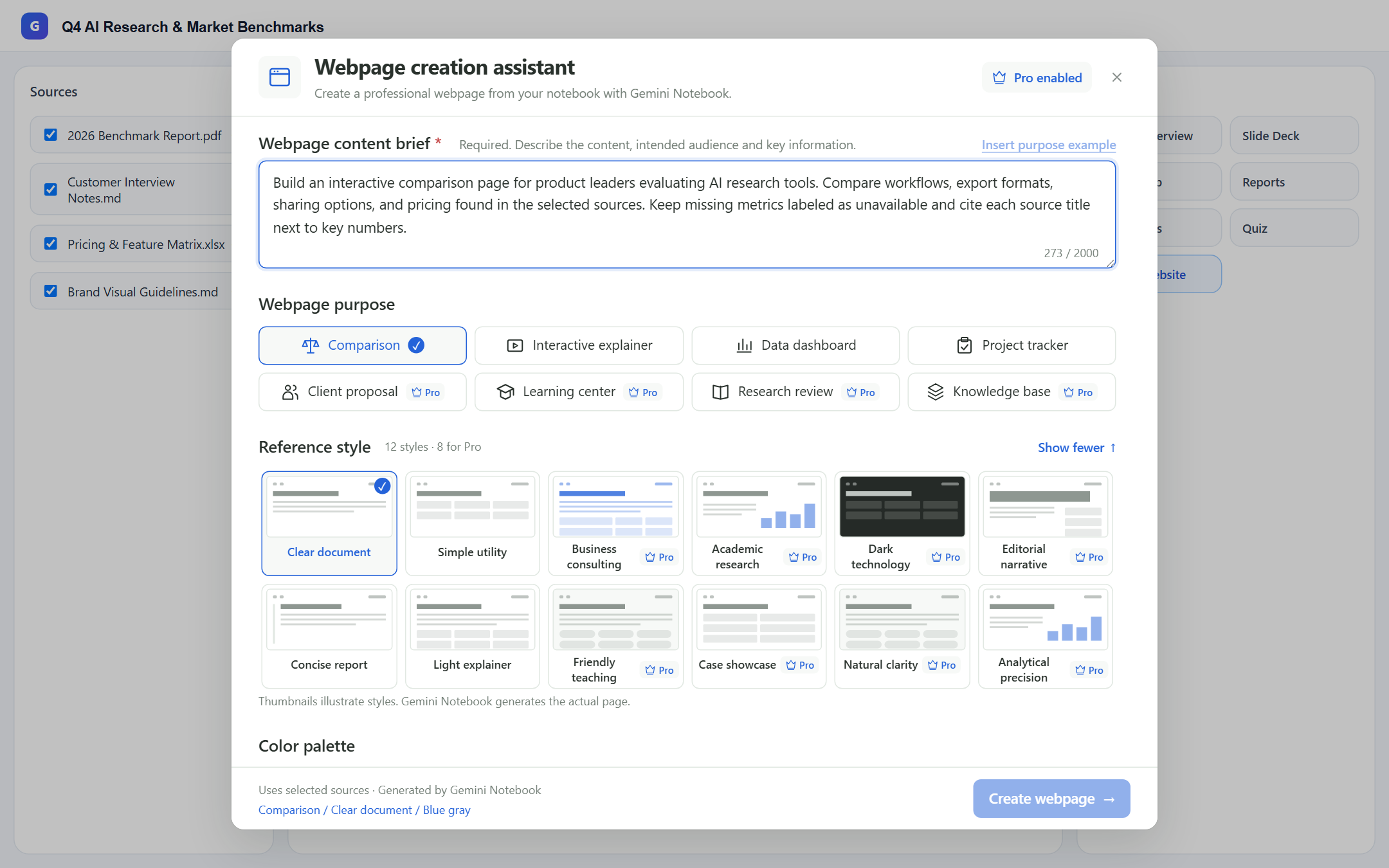
Free vs. Pro breakdown inside the Webpage Creation Assistant
- Free includes 4 purposes (Comparison, Interactive explainer, Data dashboard, Project tracker), 4 visual styles, 4 palettes, reusable local brand instructions, checked-source brand reference, 3 density levels, mobile-responsive toggle, and 4 output languages.
- Pro unlocks 4 professional purposes (Client proposal, Learning center, Research review, Knowledge base), 8 advanced styles (Consulting, Academic, Dark technology, Editorial, etc.), Wisteria palette, and custom primary brand colors.
Free vs Pro
The basics are free; the advanced options listed on this page need Ultra Exporter Pro. Pro covers the extension only; it does not include a Google subscription or raise NotebookLM / Gemini Notebook's own limits. Current prices are on the pricing page.
Feature FAQ
Do I need Pro for the Webpage Creation Assistant in NotebookLM or Gemini Notebook?
Not for the basics. Free: 4 purposes (Comparison, Interactive explainer, Data dashboard, Project tracker), 4 styles, 4 palettes, saved local brand instructions, checked source as brand guide, 3 density levels, mobile toggle, 4 languages, and native HTML download. Pro: 4 additional professional purposes (Client proposal, Learning center, Research review, Knowledge base), 8 advanced visual styles, Wisteria palette, custom primary brand color, and hosted fullscreen sharing.
Why use the Webpage Creation Assistant instead of typing “make me a site” directly in chat?
Freehand chat prompts often produce inconsistent layouts, omit source citations, or invent missing chart metrics. The assistant structures your brief around proven templates, brand rules, mobile responsiveness, and evidence verification every time.
Verified sources & external references
- Create interactive websites in Gemini Notebook — Google Helpofficial
Documents Gemini Notebook interactive site generation ("make me a site"), native More → Download HTML flow, and native sharing constraints.
- NotebookLM Help Center — Google Supportofficial
Native Google Docs/Sheets exports, Studio outputs, and 50 free / up to 600 paid source caps.
Complete workflow guide
How to Create & Share Interactive Webpages from NotebookLM / Gemini Notebook (No Google Login)
Turn Gemini Notebook / NotebookLM sources into branded interactive webpages with 8 purposes, 12 styles, free HTML downloads, and Pro hosted links with mobile QR codes.
Related guides
Hosted Webpage Sharing publishes any interactive webpage generated in Gemini Notebook / NotebookLM to a standalone fullscreen URL on share.nlmexporter.com.
Export NotebookLM generated webpages to HTML & manage in Dashboard. You get the standalone interactive HTML document generated by Gemini Notebook, ready for.
Gemini Notebook natively generates interactive sites when you type “make me a site” in chat, and some users still copy notes into Gemini Canvas and deploy.
Native Gemini Notebook site sharing can be blocked by Google Workspace external-sharing policies or require viewers to sign in to a Google account inside the.
NotebookLM Ultra Exporter adds an Export control beside notes, reports, chats and every Studio item, and in the Studio list.
Batch export lets you tick several notes, reports or Studio items in a NotebookLM notebook and export them together in one format instead of opening each.
Merged export combines several NotebookLM notes and reports into one Word, PDF or Markdown document.
Chat export saves a NotebookLM conversation, with its cited sources, as Markdown, Word, PDF, HTML, text, JSON or LaTeX.