NOTION KNOWLEDGE BASE
How to Export NotebookLM Notes, Chats, Mind Maps & Data Tables to Notion (Free & Local)
Move NotebookLM / Gemini Notebook notes, cited chats, mind maps, and Studio data tables into Notion pages and filterable databases using unlimited free Markdown (.md), CSV, and batch ZIP exports.
Quick Answer
Direct answer: Google NotebookLM / Gemini Notebook has no native Notion integration, and extensions that ask for Notion OAuth access require granting third-party servers permission to your workspace. NotebookLM Ultra Exporter gives you a faster, 100% local, and completely free path: export notes, reports, cited chats, and mind maps to clean Markdown (.md) and Studio data tables to UTF-8 CSV (.csv) with zero daily limits and no website account—then drop single files or a batch .zip straight into Notion’s native Import → Markdown & CSV to create structured Notion pages, math blocks, and filterable databases.
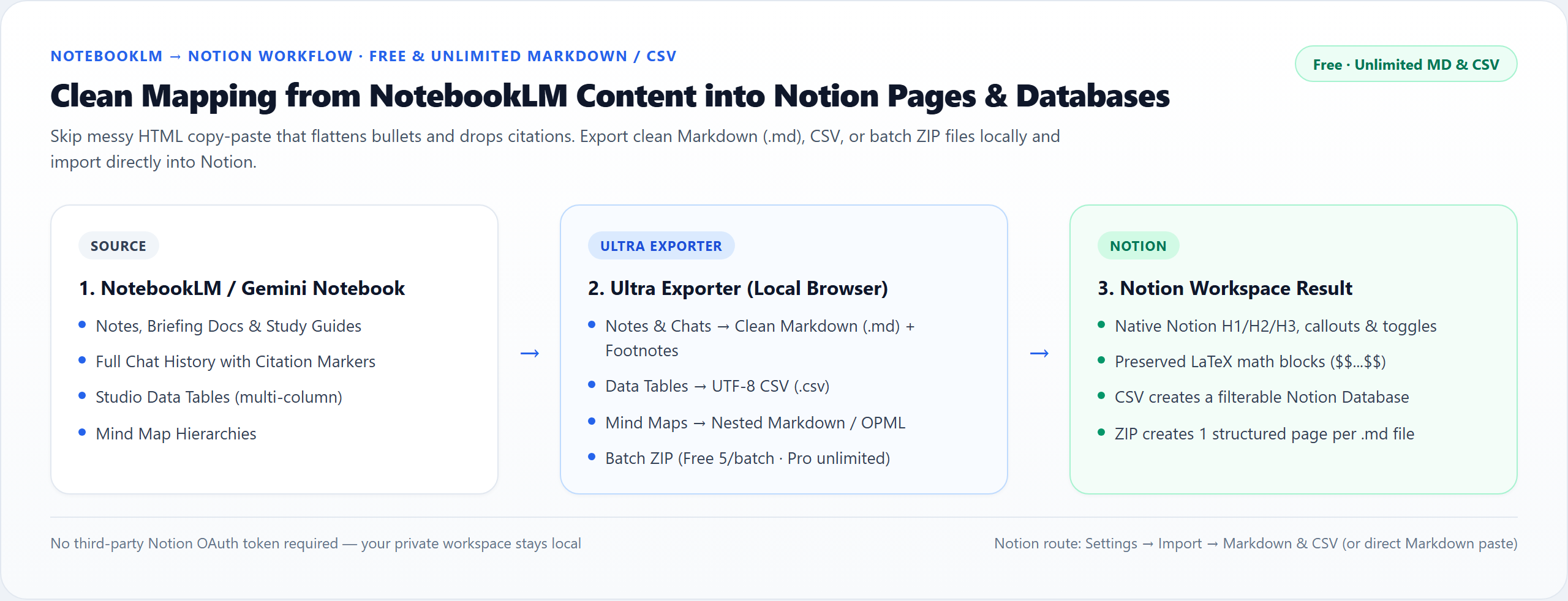
Why direct copy-paste and OAuth sync tools disappoint Notion users
- Browser copy-paste flattens nested lists and breaks tables: NotebookLM’s web HTML clipboard often collapses multi-level bullets, ruins comparison tables, and duplicates KaTeX math strings.
- Inline citations vanish silently: NotebookLM’s interactive
[1]citation chips are ignored by Notion unless converted into standard Markdown footnote references first. - Pasting a table creates a static block instead of a Notion Database: only a clean UTF-8 CSV import lets you filter, sort, group, and link rows inside a real Notion database.
- Third-party Notion OAuth extensions ask for broad workspace permissions: for private company wikis or research hubs, local Markdown/CSV/ZIP import keeps full control without exposing API tokens.
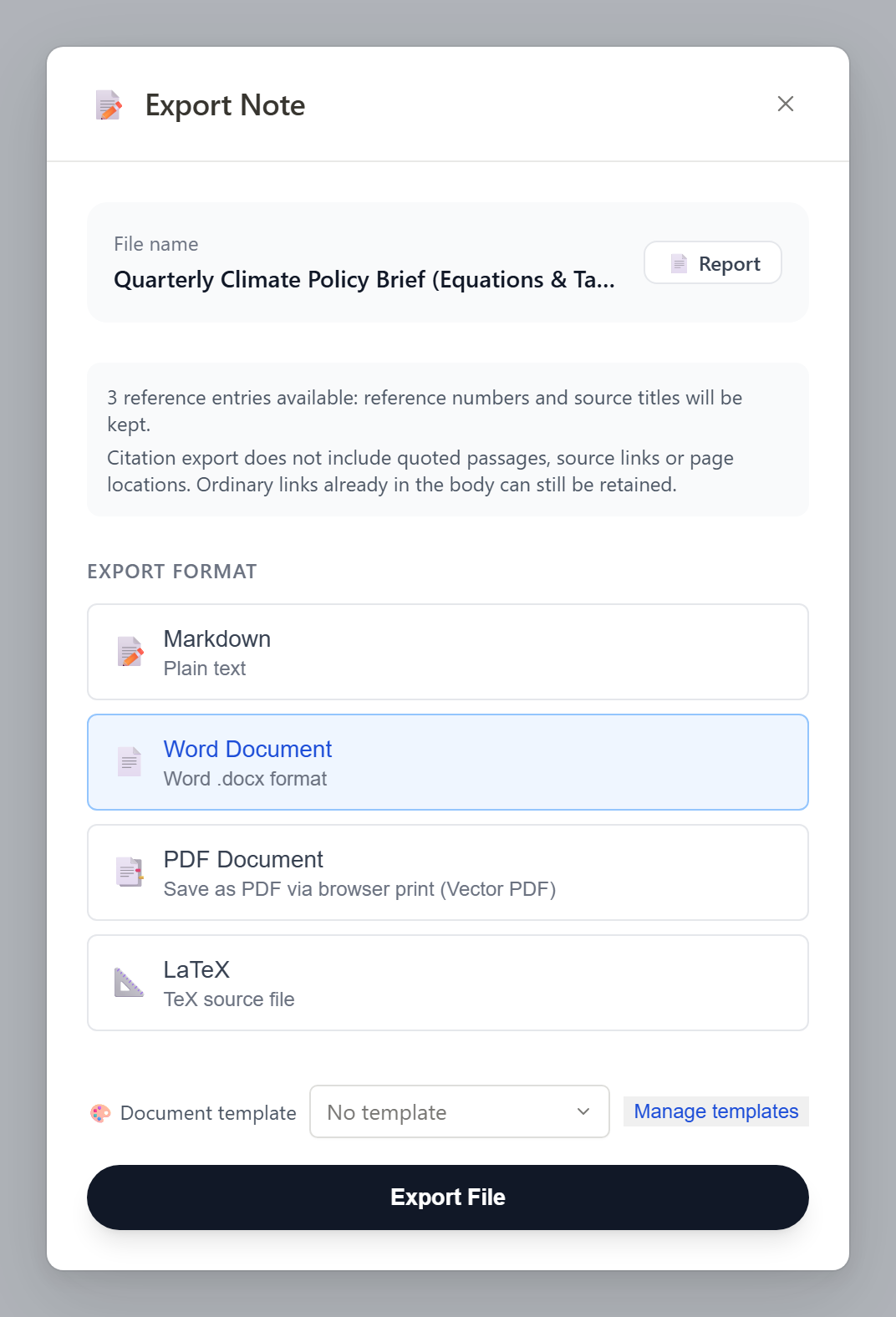
.md) from any note, report, or chat with verified citation markers—completely free and unlimited.Best Ultra Exporter format for every Notion destination
| NotebookLM content | Recommended export | How it arrives in Notion | Free vs. Pro |
|---|---|---|---|
| Notes, Briefing Docs & Study Guides | Markdown (.md) or Copy MD | Native Notion H1–H3 headings, bullets, $$...$$ math & footnotes | Unlimited Free (no daily cap) |
| Full chat threads with citations | Selected-turn Markdown (.md) | Clean Q&A Notion page with numbered source references | Unlimited Free · Edit before export on Pro |
| Studio Data Tables & Flashcards | UTF-8 CSV (.csv) | Filterable, sortable Notion Database (1 row per record) | Unlimited Free (no daily cap) |
| Mind Maps | Markdown outline (.md) or SVG (.svg) | Nested Notion toggle/bullet hierarchy or crisp embedded vector diagram | Unlimited Free (all 7 formats) |
| Multi-note research pack | Batch Markdown .zip archive | Notion creates one structured page per .md file inside the ZIP | Free (5/batch) · Pro unlimited batch & whole-notebook archive |
Step-by-step: move NotebookLM notes, tables, and ZIP packs into Notion
1. Export notes/chats as Markdown or data tables as CSV
In NotebookLM or Gemini Notebook, click Ultra Exporter on any note, report, chat, or Studio data table. Pick Markdown (.md) for pages or CSV (.csv) for databases—both are unlimited on Free.
2. For multiple items, bundle a Batch Markdown ZIP
Open Batch Export in Studio to grab up to 5 notes per batch free (or unlimited notebooks/notes on Pro) into a single .zip ready for Notion’s bulk importer.
3. Open Notion → Import → Markdown & CSV
In Notion’s sidebar, choose Import → Text & Markdown (for .md or .zip) or CSV (for .csv databases), then select the exported file from your computer.
4. Fast shortcut: 1-click Copy Markdown straight into an open page
For quick daily research notes, click Copy Markdown inside the chat or note panel and press Ctrl/Cmd + V inside any Notion page—Notion parses headings, lists, and code blocks immediately.
5. Verify LaTeX equations, footnotes, and database column types
Confirm $$...$$ math blocks and numbered citation footnotes at the bottom of your Notion page, and set CSV database column types (Select, Number, URL) as needed.
Free vs. Pro limits & privacy guarantee
Single Markdown (.md), CSV (.csv), and all 7 mind map exports are completely free with no daily limits and no website account required. Free batch export supports up to 5 items per batch; Pro removes batch limits and unlocks whole-notebook archives and multi-note merging. Ultra Exporter never asks for your Notion login or OAuth token—all files stay local on your machine.
Frequently asked questions
Is exporting NotebookLM notes and tables to Notion completely free?
Yes for core workflows. Single Markdown (.md) and CSV (.csv) exports have zero daily quotas on Free, and you can batch up to 5 items per ZIP free. Pro is only needed for unlimited batch sizes (>5 items), merged documents, or whole-notebook archives.
How do I turn a NotebookLM data table into a real filterable Notion Database?
Export the Studio Data Table as UTF-8 CSV (.csv) with Ultra Exporter, then in Notion go to Import → CSV. Notion converts every header into a database property and every row into a database entry—unlike pasting Markdown tables which only creates static simple tables.
Can Notion import a ZIP containing multiple exported NotebookLM Markdown files?
Yes. Notion’s built-in Import → Text & Markdown importer accepts a .zip archive directly and automatically builds one Notion page per Markdown file.
Do I have to grant Ultra Exporter OAuth access to my Notion workspace?
No. Because Ultra Exporter exports clean standard .md, .csv, and .zip files locally in Chrome, your private Notion workspace stays 100% isolated from third-party API tokens.
Can I also clip Notion pages into NotebookLM as sources?
Yes. Open any Notion page in Chrome and use Ultra Exporter’s current-page capture (or export a Notion folder as Markdown and drop it into Ultra Exporter’s Local Folder importer).
Deep-dive guides & troubleshooting (EN)
Verified sources & references
Related guides
NotebookLM to Obsidian
How to Export & Incrementally Sync NotebookLM Notes, Chats & Mind Maps to Obsidian
Word, PDF & Equations
How to Export NotebookLM Notes & Reports to Word (.docx) & PDF with Editable Equations & Tables
Export Chat History
How to Export Full NotebookLM Chat History with Citations (Markdown, Word, PDF & LaTeX)
TRY IT ON YOUR OWN NOTEBOOK
Start with Free exports & webpages in Chrome.
No website account needed for basic exports or HTML webpage downloads. Test your own notebooks before deciding on Pro.