CAPTURE & BULK IMPORT
How to Import ChatGPT, Claude, DeepSeek, Kimi, Doubao & YouTube Playlists into NotebookLM
Capture loaded chats from 6 AI assistants (ChatGPT, Claude, Gemini, DeepSeek, Kimi, Doubao) plus YouTube playlists, open tabs, RSS feeds, websites & DOI papers into NotebookLM / Gemini Notebook.
Quick Answer
Direct answer: Native NotebookLM / Gemini Notebook forces you to paste URLs or raw text one source at a time—with zero built-in button for ChatGPT/Claude/DeepSeek conversations or YouTube playlists. NotebookLM Ultra Exporter Free includes an all-in-one Import Hub covering 6 AI chat platforms (ChatGPT, Claude, Gemini, DeepSeek, Kimi, Doubao), YouTube playlist/channel preflight deduplication, right-click web pages, open browser tabs, RSS feeds, merged text (to save Google source slots), and local folders—up to 20 successful sources per local day (5 per batch) with no website account. Pro removes extension import caps and adds bulk ChatGPT/Claude history import, website/sitemap crawling, EPUB/PDF chapter splitting, DOI academic papers, CSV link lists, and local scheduled recipes.
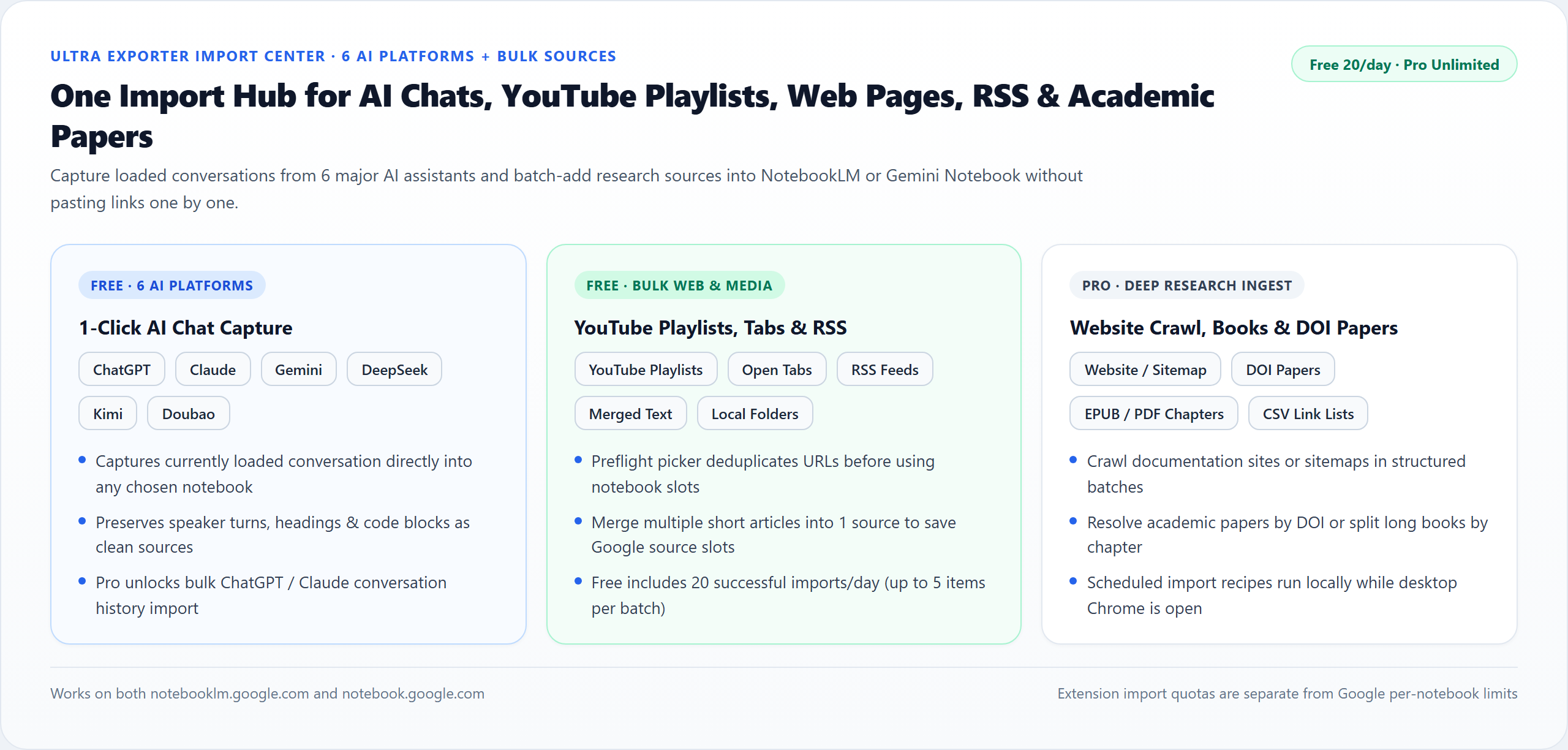
notebooklm.google.com and notebook.google.com.Why collecting research sources manually slows down every NotebookLM project
- Deep reasoning stays trapped in 6 different AI apps: copying 30-turn discussions from ChatGPT, Claude, Gemini, DeepSeek, Kimi, or Doubao one message at a time wastes hours and loses structure.
- YouTube lecture playlists require dozens of manual pastes: pasting 30 course videos one by one hides duplicate links and captionless videos until Google rejects them.
- Short articles burn through Google’s per-notebook source limit fast: adding 40 brief blog posts separately consumes 40 source slots unless you merge them into one structured source first.
- Documentation sites, books, and papers take manual splitting: ingesting an entire docs sitemap, a 400-page EPUB/PDF book, or 15 DOI papers manually is nearly impossible.
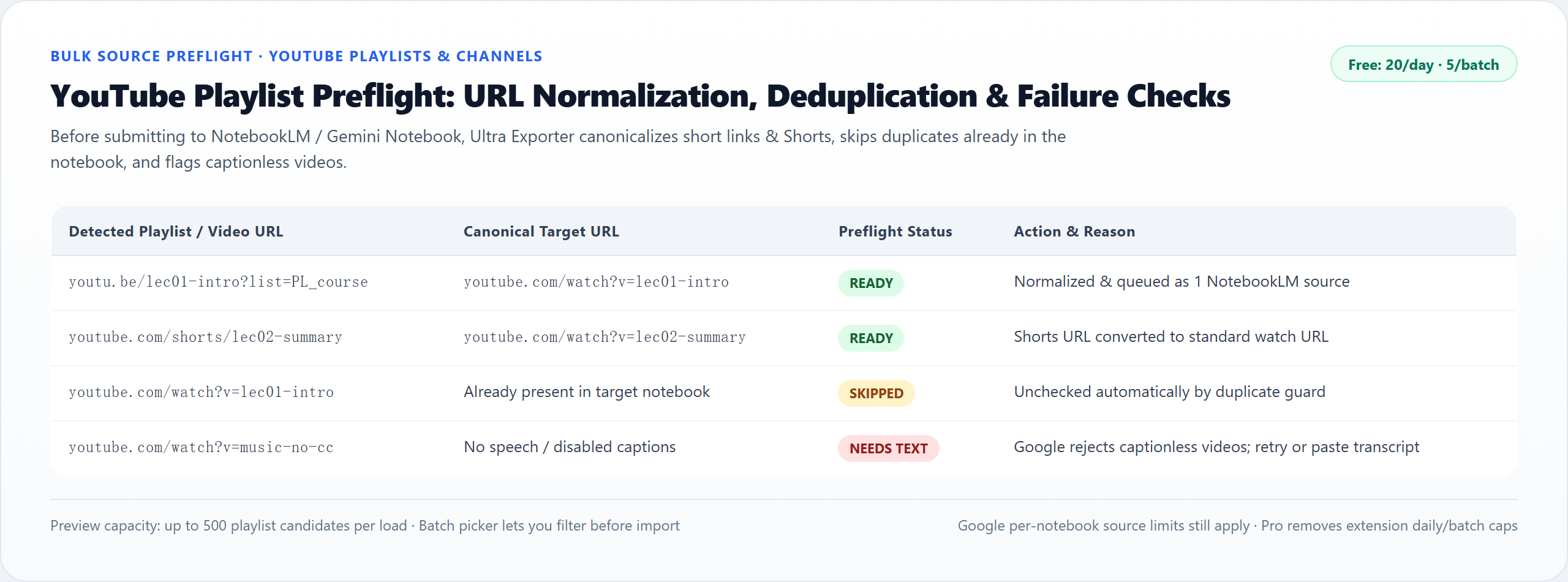
youtu.be and Shorts links, automatically unchecks videos already in your notebook, and flags captionless videos before they waste slots or fail.Source capture & bulk import: Native vs. Ultra Exporter Free & Pro
| Source type | Native NotebookLM | Ultra Exporter Free (20/day · 5/batch) | Ultra Exporter Pro (No extension cap) |
|---|---|---|---|
| 6 AI chat platforms | Not supported (manual copy-paste) | 1-click capture of loaded ChatGPT, Claude, Gemini, DeepSeek, Kimi & Doubao chats | Unlimited daily imports + bulk ChatGPT & Claude conversation history import |
| YouTube playlists & channels | 1 video URL at a time | Preflight picker (up to 500 candidates), dedupe & caption check; 5/batch, 20/day | Unlimited batch size & daily count (subject to Google notebook source cap) |
| Web pages, open tabs, RSS & merged text | Paste 1 URL at a time | Right-click page/selection, batch open tabs, RSS feeds, local folders & merged text | Unlimited batches + scheduled local import recipes while Chrome is running |
| Deep research (Websites, Books, DOI, CSV) | Not supported natively | Preview available; execution requires Pro | Website/Sitemap crawler, EPUB/PDF chapter splitter, DOI paper resolver & CSV link list |
Step-by-step: capture AI chats and batch-import YouTube playlists into NotebookLM
1. Sign into NotebookLM / Gemini Notebook in Chrome
Ultra Exporter reuses your active browser session on notebooklm.google.com or notebook.google.com—so you never hand over your Google password or third-party API keys.
2. Capture a loaded ChatGPT, Claude, DeepSeek, Kimi, or Doubao chat in 1 click
Open any AI conversation tab, click the Ultra Exporter capture trigger (or extension popup), choose your target notebook (or create a new one), and send the formatted Q&A straight in as a clean text source.
3. Batch-import a YouTube playlist with preflight deduplication
Open the In-Page Import Modal or full Import Center → YouTube, paste a playlist or channel URL, review the canonicalized video list (duplicates are unchecked automatically), and submit in clean batches.
4. Merge multiple short web articles into 1 source to save slots
When importing 10+ brief blog posts, open browser tabs, or RSS items, enable “Merged Text” so they land as one clean, structured document instead of eating 10 separate Google source slots.
5. Optional (Pro): crawl docs sitemaps, split books by chapter, or import DOI papers
Open the full Import Center tab to ingest documentation websites via sitemap, split large EPUB/PDF books into chapter sources, resolve academic DOIs, or bulk-import ChatGPT/Claude history exports.
Extension import quotas vs. Google notebook limits
Ultra Exporter Free allows up to 20 successful imported sources per local day (up to 5 items per batch) across AI chats, YouTube playlists, web pages, open tabs, RSS, merged text, and local folders—failed attempts never consume quota. Pro removes extension daily and batch caps and unlocks website crawling, books, DOI papers, CSV lists, and bulk ChatGPT/Claude history import. Note: Pro removes extension limits only; Google’s own per-notebook source cap and transcript availability rules (e.g. captionless YouTube videos) still apply.
Frequently asked questions
Can I import a YouTube playlist into NotebookLM on the Free plan?
Yes. YouTube playlist and channel preflight import is included in Ultra Exporter Free—up to 20 successful sources per local day (5 videos per batch) with zero website account required. Pro removes the 5/batch and 20/day extension caps.
Which AI chat platforms are supported for 1-click capture?
Free supports capturing the currently loaded conversation from 6 platforms: ChatGPT, Claude, Gemini, DeepSeek, Kimi, and Doubao. Pro additionally supports bulk importing your exported ChatGPT and Claude conversation histories.
Why did one video in my YouTube playlist fail to import into NotebookLM?
Google NotebookLM requires a usable speech transcript (captions) and public access to ingest a YouTube URL. Music-only videos, private/age-restricted videos, or videos with disabled captions are rejected by Google; Ultra Exporter flags them in preflight so you can skip them or paste a manual transcript.
How can I import more articles without hitting NotebookLM’s source count limit?
Use Ultra Exporter’s Merged Text mode when importing open tabs, web links, or RSS items: it combines multiple related articles with clean source headers into a single NotebookLM source slot.
Do scheduled import recipes run on a cloud server when my computer is off?
No. For privacy and security, automated recipes run locally inside your desktop Chrome extension while Chrome is open and signed into NotebookLM—never using stored Google credentials on remote servers.
Deep-dive guides & troubleshooting (EN)
Verified sources & references
Related guides
Gemini Notebook Guide
Gemini Notebook Export Guide (Formerly NotebookLM): Word, PDF, Webpages, Anki, LMS & AI Chat Import
NotebookLM to Obsidian
How to Export & Incrementally Sync NotebookLM Notes, Chats & Mind Maps to Obsidian
Create & Share Webpages
How to Create & Share Interactive Webpages from NotebookLM / Gemini Notebook (No Google Login)
TRY IT ON YOUR OWN NOTEBOOK
Start with Free exports & webpages in Chrome.
No website account needed for basic exports or HTML webpage downloads. Test your own notebooks before deciding on Pro.