WORD, PDF & EQUATIONS
How to Export NotebookLM Notes & Reports to Word (.docx) & PDF with Editable Equations & Tables
Stop broken `$...$` math and clipped print-to-PDF tables. Export NotebookLM / Gemini Notebook notes and reports locally to Word (.docx) with native OMML equations, clean PDF, or unlimited Markdown & LaTeX.
Quick Answer
Direct answer: Copy-pasting from NotebookLM into Microsoft Word duplicates KaTeX accessibility spans into garbled math text, strips inline citations, and breaks multi-column tables—while browser Ctrl+P Print-to-PDF clips wide tables off the right margin. NotebookLM Ultra Exporter converts notes and Studio reports 100% locally in Chrome into editable Word (.docx) with native Office OMML equations, clean paginated PDF, or unlimited free Markdown (.md) and LaTeX (.tex). Word and PDF share 5 free successful exports per local day (no account needed); Pro removes daily limits, merges multiple notes with a table of contents, removes the free footer credit, and saves up to 20 branded cover/logo/header/footer templates.
Download verified sample outputs
Why copy-paste, browser Print-to-PDF, and Google Docs detour fail STEM & business reports
- KaTeX accessibility spans paste garbled duplicate math: copying equations from NotebookLM into Word pastes both the visual string and raw TeX side by side—requiring manual
Alt + =fixes for every equation. - Browser
Ctrl+Pslices wide comparison tables: multi-column Studio reports overflow off the PDF margin, include web sidebars, and split headings from their paragraphs. - Online Markdown-to-DOCX converters (like MassiveMark) require extra copy-paste and cloud upload: moving confidential papers through external web playgrounds breaks local privacy.
- No multi-note report assembly or corporate branding: turning 6 Studio briefing notes into one client-ready deliverable with a cover page, logo, and table of contents takes hours in Word.
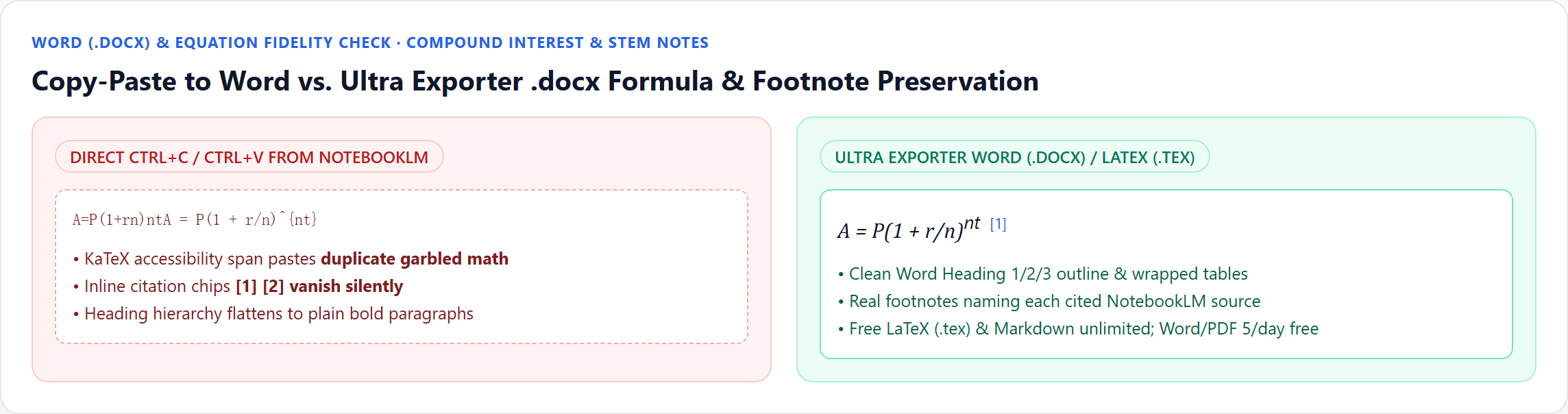
A=P(1+rn)ntA = P(1+r/n)^{nt}) and strips [1] citations, whereas Ultra Exporter emits editable Word OMML equations and real footnotes.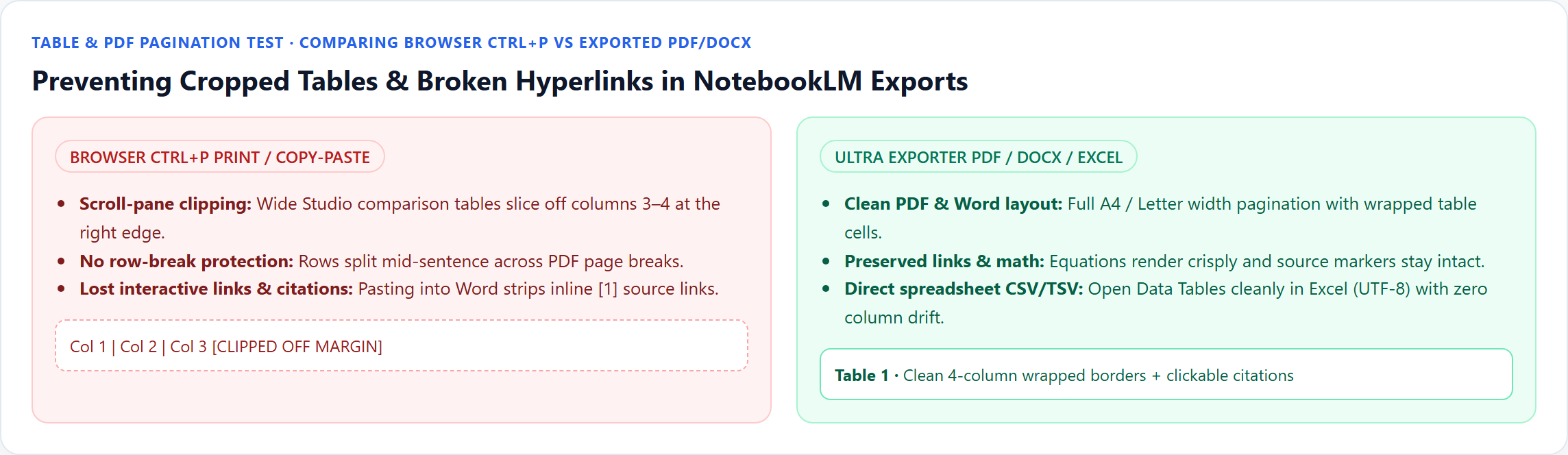
Ctrl+P printing.Word (.docx), PDF, Markdown & LaTeX: formats, equations & Free/Pro boundaries
| Output format | Best used for | Equations, tables & citations | Free vs. Pro allowance |
|---|---|---|---|
Word (.docx) | Editing thesis chapters, client deliverables & team docs | Native editable Word OMML equations + wrapped real tables + numbered footnotes | Shared 5/day Free (no account) · Unlimited + merge + 20 branded templates on Pro |
PDF (.pdf) | Print-ready reports, academic submissions & fixed-layout sharing | Crisp rendered equations + clean A4/Letter pagination + clickable links | Shared 5/day Free · Unlimited + cover/logo/header/footer + clean footer on Pro |
Markdown (.md) | Obsidian, Notion, GitHub, Logseq & technical docs | Standard $...$ / $$...$$ math + GFM tables + citation footnotes | Unlimited Free (never counts toward 5/day quota) |
LaTeX (.tex) | Overleaf manuscripts, STEM journals & heavy mathematical proofs | Direct LaTeX math source + clean section hierarchy & table environments | Unlimited Free (never counts toward 5/day quota) |
Step-by-step: export NotebookLM notes & reports to Word or PDF cleanly
1. Open the target note or Studio report
Open any saved note, Briefing Doc, Study Guide, or FAQ in NotebookLM (notebooklm.google.com) or Gemini Notebook (notebook.google.com).
2. Click the injected Ultra Exporter button and check citations
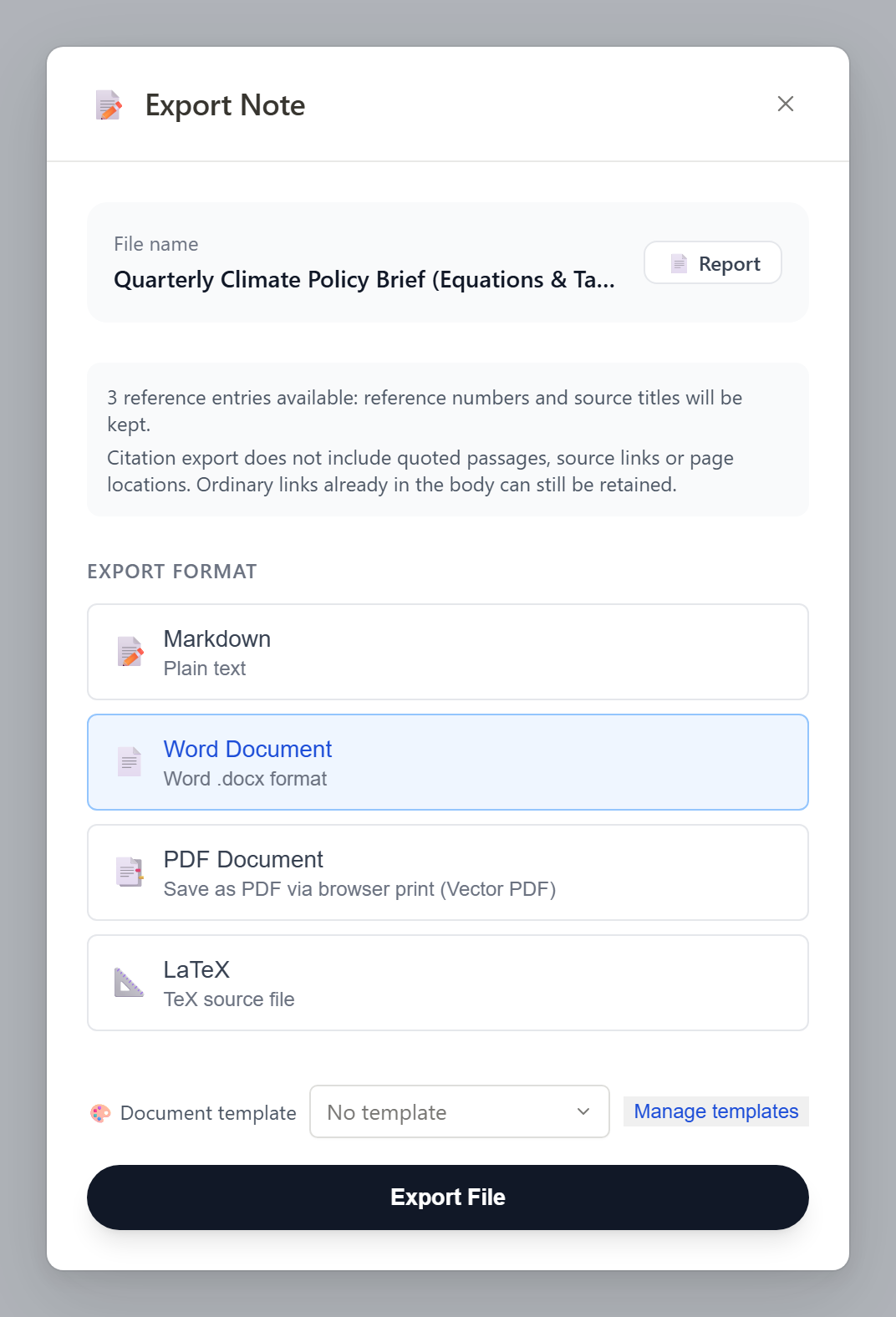
The Note Export dialog immediately reports how many readable citation entries will be carried into footnotes—and warns if any collapsed citation groups should be expanded first.
3. Choose Word (.docx), PDF, Markdown, or LaTeX (.tex)
Pick Word (.docx) for editable OMML equations and tracked edits, PDF for fixed-layout submission, or Markdown / LaTeX for unlimited free academic and PKM exports.
4. Optional (Pro): apply a branded template or merge multiple notes
Use Template Picker to apply one of up to 20 saved Word/PDF brand profiles (cover page, logo, fonts, accent color, header & footer), or open Batch / Merge Export to combine multiple notes with an auto-generated table of contents.
5. Verify equations and tables locally in Word or your PDF viewer
Double-click any formula inside Microsoft Word to confirm it opens the native Equation Editor, and inspect wide comparison tables across page breaks.
Real Free vs. Pro quotas & equation boundary
Markdown (.md) and LaTeX (.tex) are completely unlimited on Free. Word (.docx), PDF, image PPTX, long image, and video share 5 successful Free exports per local day (reset at local midnight; failed attempts never consume quota; no website account needed). Free Word/PDF files may include a small footer credit; Pro removes it, removes daily caps, enables multi-note merged exports, and unlocks 20 branded templates. Ultra Exporter converts standard math into native Word OMML equations, falling back safely on unusually complex TeX macros—always review dense derivations before formal publication. All conversion is 100% local in Chrome.
Frequently asked questions
Can I click and edit math equations inside the exported Word (.docx) file?
Yes. Ultra Exporter converts supported KaTeX/LaTeX math into native Microsoft Word (OMML) equations instead of flat screenshots, so you can edit variables and symbols directly in Word’s Equation Editor. For heavy academic macros, unlimited free LaTeX (.tex) export is also built in.
Do Word and PDF each get 5 free exports per day, or do they share 5?
Word, PDF, image PPTX, long image, and video share 5 successful Free exports per local day. Failed exports do not count, and Markdown, LaTeX, CSV, mind maps (7 formats), flashcards (8 formats), and quizzes (19 formats) never touch that daily quota.
How do I merge 5 or 10 NotebookLM notes into one Word or PDF report?
Use Ultra Exporter Pro’s Merged Export from the Studio panel: select multiple notes and reports, drag to reorder sections, and generate a single .docx or .pdf with a unified table of contents, clean page breaks, and consolidated footnotes.
Can I add my company logo, cover page, and custom header/footer to exported PDFs?
Yes, with Pro Branded Document Templates. You can configure cover layout, author/organization name, logo, font family, theme color, header, and footer, and save up to 20 reusable templates locally.
Does converting notes to Word or PDF upload my documents to any cloud server?
No. Both .docx and .pdf generation run 100% locally inside your Chrome browser—ideal for legal briefs, medical notes, and confidential corporate research.
Deep-dive guides & troubleshooting (EN)
Verified sources & references
Related guides
Export to Notion
How to Export NotebookLM Notes, Chats, Mind Maps & Data Tables to Notion (Free & Local)
NotebookLM to Obsidian
How to Export & Incrementally Sync NotebookLM Notes, Chats & Mind Maps to Obsidian
Export Chat History
How to Export Full NotebookLM Chat History with Citations (Markdown, Word, PDF & LaTeX)
TRY IT ON YOUR OWN NOTEBOOK
Start with Free exports & webpages in Chrome.
No website account needed for basic exports or HTML webpage downloads. Test your own notebooks before deciding on Pro.