QUESTIONS · EXPORTING
How do I replace a chart or edit text boxes in NotebookLM slides?
Direct answer
No tool automatically turns NotebookLM’s flattened raster illustrations into native PowerPoint Excel charts. Instead, export Editable PowerPoint (Pro) to get real clickable title and bullet text boxes, crop or replace the static chart from the appended reference slide using your own Excel chart, and tighten bullet spacing in seconds.
Best suited for
Consultants and educators who exported Editable PowerPoint (Pro) and want to swap an AI-generated chart for real Excel data or adjust individual text layers
Prerequisites
- Deck exported using Ultra Exporter **Editable PowerPoint (Pro)** with reference images or side thumbnails enabled
- Microsoft PowerPoint or Google Slides open
What to do
- Install NotebookLM Ultra Exporter in desktop Chrome, then refresh any open NotebookLM (Gemini Notebook) tab.
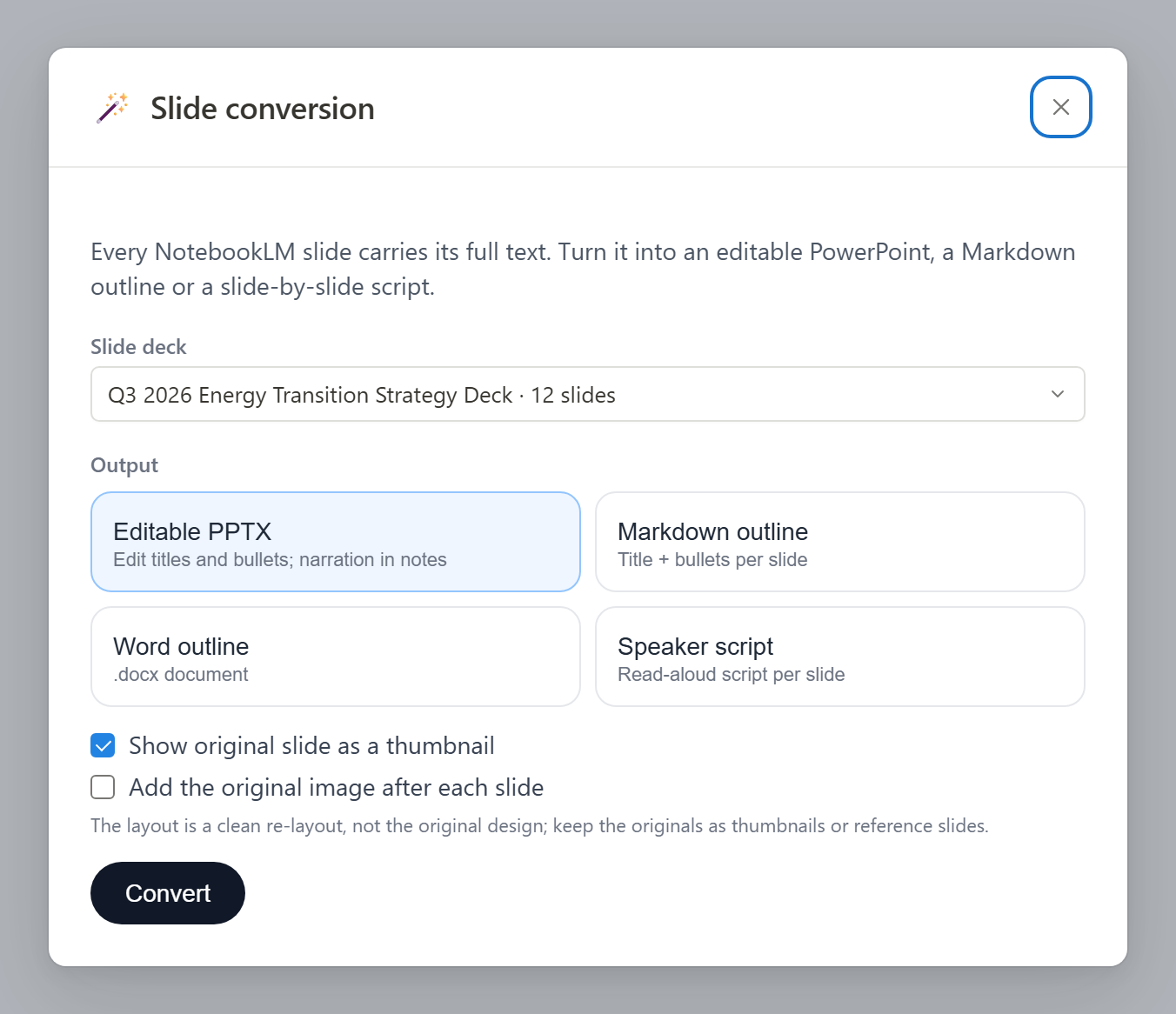
- Export the deck with Editable PowerPoint (Pro) and enable Append original slides as reference (or Side Thumbnail).
- Open the
.pptxin PowerPoint or Google Slides, click any title or bullet box to resize, recolor, or rewrite copy directly. - Where a slide needs real financial/lab data, delete the thumbnail and use Insert -> Chart in PowerPoint rather than leaving baked AI numbers on screen.
- Delete the appended reference slides cleanly before emailing the final client
.pptx.
What to know
- Editable PowerPoint rebuilds titles and bullets as real PptxGenJS text boxes on 13.333 × 7.5 in widescreen slides (no OCR needed).
- Generated charts/illustrations remain inside the original slide bitmap — choose "Keep original as reference slide" or "Side thumbnail" during export.
- To replace an inaccurate AI chart, insert a native PowerPoint chart (
Insert -> Chart) or crop just the clean illustration region from the reference slide.
Downloadable verified test files
Honest boundary on AI diagram deconstruction
- Google generates slide illustrations as single raster bitmaps rather than PowerPoint SVG/XML shapes.
- Ultra Exporter extracts the structured slide text metadata directly for accurate typography without hallucinating vector chart axes.
Google changes these menus often. The item's own menu in your notebook shows what is built in today.
Plan requirement
Requires Ultra Exporter Pro (annual or one-time). Pro covers the extension only; it does not include a Google subscription or raise NotebookLM / Gemini Notebook's own limits. Current prices are on the pricing page.
Follow-up questions
Why can I edit text boxes in Editable PowerPoint, while the chart inside the reference image is still flat?
Because Google pairs clean text metadata (slide[2]) with a flattened PNG background image per slide. Rebuilding text boxes is deterministic; raster artwork stays a picture.
Can I keep just the AI diagram graphic without the AI-rendered text?
In PowerPoint, duplicate the appended reference slide picture, use Picture Format -> Crop to isolate the illustration region, and place it beside your editable text boxes.
Where can I check what each original illustration depicted?
Ultra Exporter places the [illustration] descriptions and spoken narration inside PowerPoint Speaker Notes.
What happens if text overflows after applying my corporate Slide Master?
See our PPTX font substitution & layout fix guide for Replace Fonts and Google Fonts steps.
Verified sources & external references
- NotebookLM Help Center — Google Supportofficial
Native Google Docs/Sheets exports, Studio outputs, and source limits.
Complete workflow guide
How to Export NotebookLM Slides to Editable PowerPoint (.pptx), Outlines & Speaker Scripts
Native NotebookLM slide exports flatten every slide into a static image. Export PNG/ZIP/image PPTX on Free, or rebuild native editable PowerPoint text boxes, outlines & speaker scripts locally with Pro.
Related guides
Because NotebookLM generates each slide as a single picture. The PDF or PPTX you download contains one flat image per slide, so there are no text boxes to.
If every slide selects as a single picture, you downloaded NotebookLM’s native image-based PPTX and must rebuild editable slides with Ultra Exporter Pro.
How to Export NotebookLM slides to editable PowerPoint. You get a .pptx with native title and body text boxes rebuilt from the text available in the slide.
Export with footnotes enabled via Ultra Exporter so every claim retains its numbered source marker, open the cited source file directly to confirm quotes and.
Moodle throws "Invalid xml file — string expected (use CDATA?)" when hand-edited scripts or unescaped exports leave raw `<`, `>`, `&`, or HTML tags inside.
NotebookLM only exports one note at a time to Google Docs and cannot merge multiple notes into one document.
Copying equations from NotebookLM with Ctrl+C pastes duplicate hidden KaTeX accessibility text and strips inline citation chips.
Google’s native mind map download saves one flat bitmap PNG of expanded branches, which blurs or shrinks to unreadable text on standard paper.