USE CASES · WORK
How to Use NotebookLM for interactive webpages: client proposals, dashboards & course hubs
Workflow overview
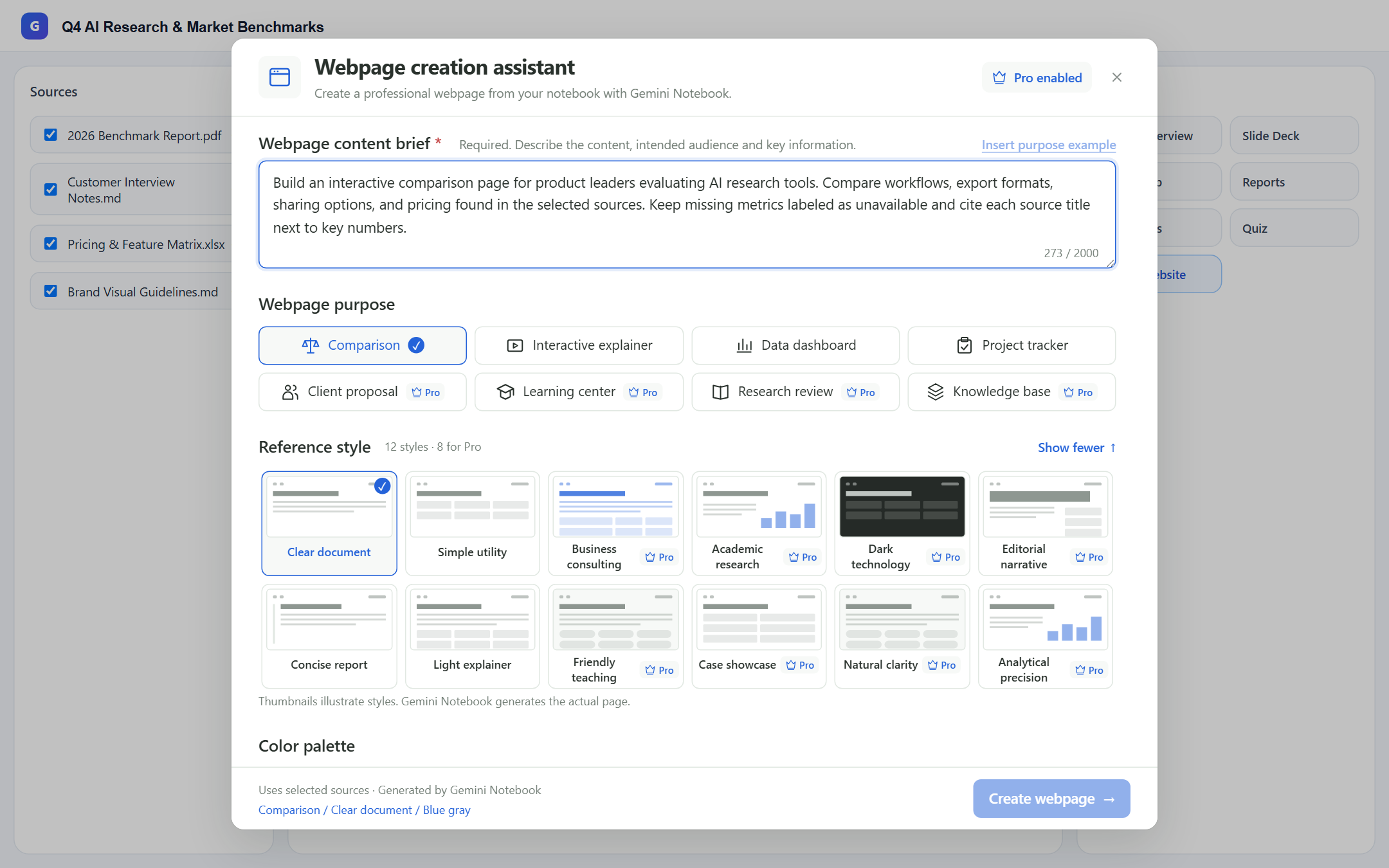
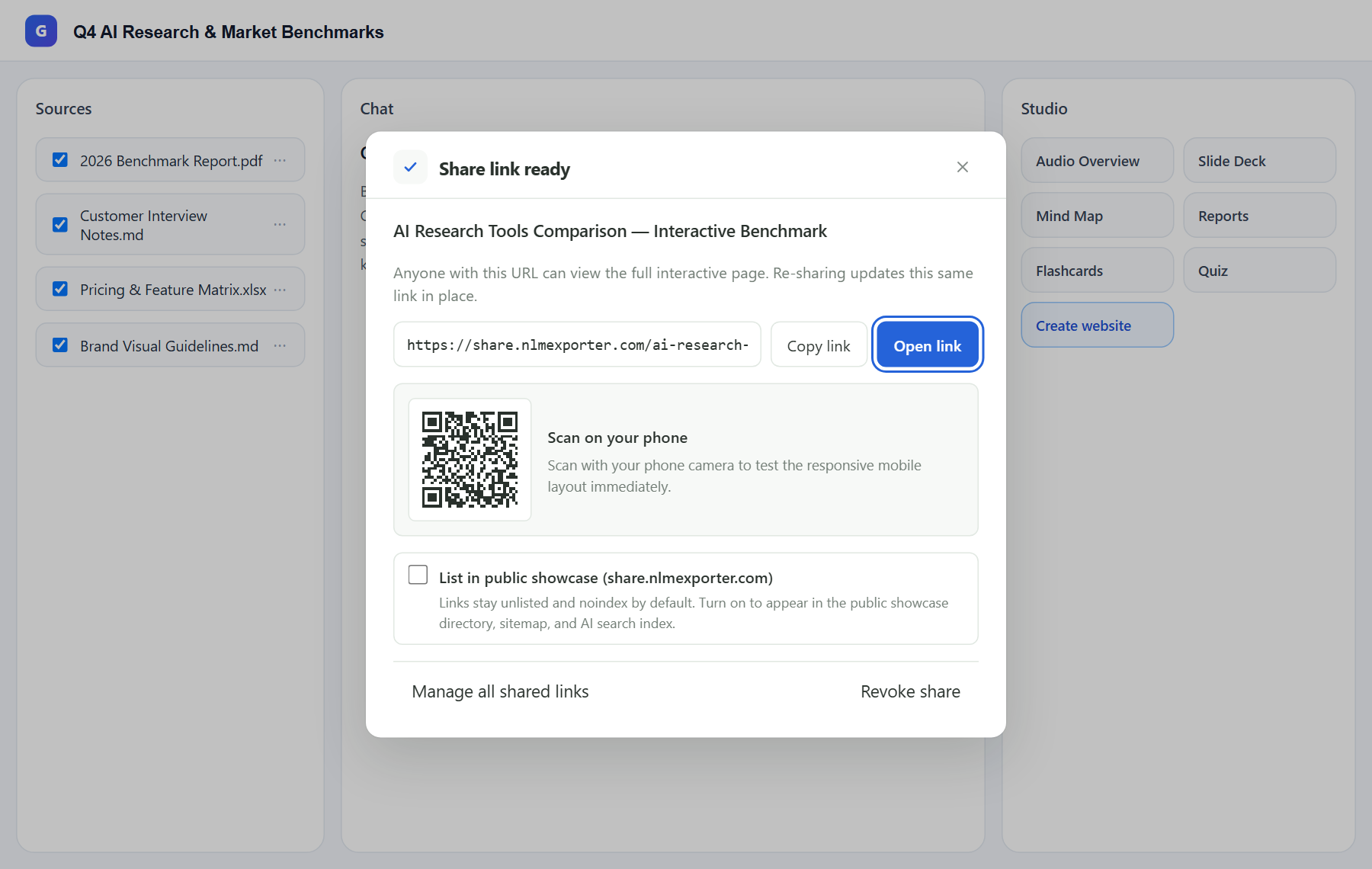
Teams, consultants, and educators use Gemini Notebook / NotebookLM to turn dense PDFs, weekly reports, and course readings into interactive webpages instead of static slide decks. With Ultra Exporter’s Webpage Creation Assistant, you pick one of 8 structured purposes and 12 visual styles, attach reusable brand guidelines, download standalone HTML for free, or share a fullscreen link and mobile QR code on share.nlmexporter.com with Pro.
Best suited for
Consultants, product managers, educators, and researchers shipping interactive webpages from NotebookLM / Gemini Notebook sources
Prerequisites
- Sources checked inside a Gemini Notebook / NotebookLM notebook
- Desktop Chrome with Ultra Exporter installed
Workflow details
| Item | Detail |
|---|---|
| Stages | Collect sources, work in NotebookLM / Gemini Notebook, export the result |
| Outputs | Branded interactive webpage prompt (Studio Assistant); Offline standalone HTML archive (.html (Free)); Login-free fullscreen link + QR code (Hosted URL (Pro)); Companion Word / PDF report (.docx / .pdf) |
| Cost to start | Free. Each linked guide states whether its output is Free or Pro. |
Step-by-step workflow
- Install NotebookLM Ultra Exporter in desktop Chrome, then refresh any open NotebookLM (Gemini Notebook) tab.
- Create a notebook for this piece of work and add the sources listed below.
- Generate and save the answers, reports or Studio items you need.
- Export each result in the format its destination accepts, then check the file.
1. Pull project docs & links
- Gather PDFs, reports, meeting notes, and web pages via bulk URL import or local files and folders.
- Optionally upload your team’s style guide or design brief as a source and keep it checked so the Webpage Creation Assistant can reference it as your brand source.
2. Extract decisions & tables
- Click Create website in Studio and pick a purpose: Comparison, Interactive explainer, Data dashboard, or Project tracker (Free), or Client proposal, Learning center, Research review, or Knowledge base (Pro).
- Choose a visual style (such as Business consulting, Academic research, Friendly teaching, or Analytical precision), toggle Mobile-friendly layout, and let Ultra Exporter inject strict source-grounding rules so missing metrics are never invented.
- Open the generated webpage in a new tab to inspect filters, charts, and inline source citations before sharing.
3. Export to slides, Word or Excel
| Output and guide | Format |
|---|---|
| Branded interactive webpage prompt | Studio Assistant |
| Offline standalone HTML archive | .html (Free) |
| Login-free fullscreen link + QR code | Hosted URL (Pro) |
| Companion Word / PDF report | .docx / .pdf |
Keep client proposals and internal project trackers on the default Unlisted (noindex) share setting. Opt in to the public showcase on share.nlmexporter.com only for public educational explainers, open benchmarks, or portfolio pieces.
Free vs Pro
The basics are free; the advanced options listed on this page need Ultra Exporter Pro. Pro covers the extension only; it does not include a Google subscription or raise NotebookLM / Gemini Notebook's own limits. Current prices are on the pricing page.
Workflow FAQ
Which of the 8 webpage purposes are free and which require Pro?
Comparison, Interactive explainer, Data dashboard, and Project tracker (plus 4 styles, 4 palettes, brand guidelines, and HTML download) are free. Client proposal, Learning center, Research review, Knowledge base, 8 advanced styles, custom brand colors, and hosted sharing require Pro.
Does this workflow need Ultra Exporter Pro?
Not to start. Capturing pages, the basic import methods and the basic export formats are free. Word, PDF, image PowerPoint, long image and video exports share 5 free exports per local day. The table above links each output to a guide that states its plan.
Verified sources & external references
- Create interactive websites in Gemini Notebook — Google Helpofficial
Documents Gemini Notebook interactive site generation ("make me a site"), native More → Download HTML flow, and native sharing constraints.
- NotebookLM Help Center — Google Supportofficial
Native Google Docs/Sheets exports, Studio outputs, and 50 free / up to 600 paid source caps.
Complete workflow guide
How to Create & Share Interactive Webpages from NotebookLM / Gemini Notebook (No Google Login)
Turn Gemini Notebook / NotebookLM sources into branded interactive webpages with 8 purposes, 12 styles, free HTML downloads, and Pro hosted links with mobile QR codes.
Related guides
Ultra Exporter is the first NotebookLM Chrome extension with an in-page Webpage Creation Assistant inside Studio.
Export NotebookLM generated webpages to HTML & manage in Dashboard. You get the standalone interactive HTML document generated by Gemini Notebook, ready for.
Hosted Webpage Sharing publishes any interactive webpage generated in Gemini Notebook / NotebookLM to a standalone fullscreen URL on share.nlmexporter.com.
How to Convert NotebookLM reports to Word. You get the full report, whether a briefing document, study guide or FAQ, as an editable .docx with headings.
Consultants use NotebookLM to digest client documents, interviews and market reports, then need a deliverable in the client format.
Legal teams use NotebookLM to question contracts, filings and regulations with citations back to the passage.
Product managers load interview notes, tickets and competitor pages into NotebookLM to find themes and write requirement drafts with evidence attached.
UX researchers load interview transcripts into NotebookLM and ask for themes, jobs to be done and supporting quotes.