QUESTIONS · ORGANIZING NOTEBOOKS
How to organize, filter, and archive 100+ NotebookLM notebooks
Direct answer
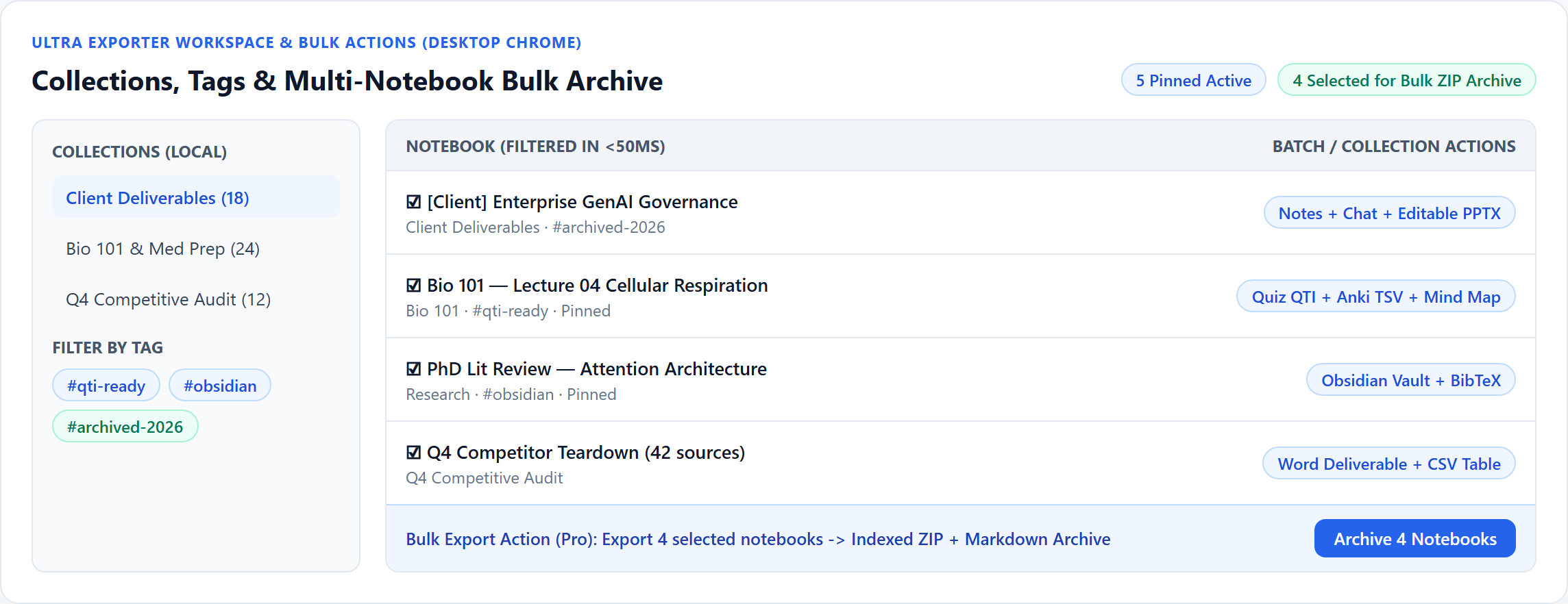
NotebookLM’s home page loads all notebooks in one flat grid without folders or batch archiving. Use Ultra Exporter’s free Collections, multi-tags, 5 pinned slots, and keyword automation rules to filter 100+ notebooks in milliseconds, then run Pro Multi-Notebook Bulk Archive before deleting completed projects.
Best suited for
Heavy NotebookLM power users drowning in 50–200+ flat notebooks who need instant filtering, auto-tagging, and safe bulk cleanup
Prerequisites
- Desktop Chrome with Ultra Exporter installed
What to do
- Install NotebookLM Ultra Exporter in desktop Chrome, then refresh any open NotebookLM (Gemini Notebook) tab.
- Open the Workspace view or Chrome Side Panel from Ultra Exporter.
- Create 4–8 broad top-level Collections (
Courses,Clients,Papers,Archive-2026) and tag granular subtopics (#anki,#qti). - Set an Automation Rule so new notebooks matching a title keyword file automatically without manual dragging.
- Quarterly, filter completed notebooks -> select them in Workspace -> run Bulk Archive (.zip) (Pro) to back up notes/chats/sources locally before decluttering.
What to know
- Local search, collection filtering, tags, and up to 5 pinned notebooks are 100% free.
- One automation rule is included free (Pro unlocks unlimited rules) to file notebooks by title prefix like
[2026]or[Client]. - Always bulk-archive old notebooks as indexed ZIPs (or Obsidian-style Markdown folders) before deleting them inside Google’s grid.
Protect local organization metadata
- Collections, tags, and pins live in Chrome extension storage rather than Google servers because Google offers no native folder field.
- Remember NotebookLM’s Google account notebook cap (~100 notebooks on free tier, higher on paid plans) — archiving locally lets you keep old work offline while freeing active slots.
Google changes these menus often. The item's own menu in your notebook shows what is built in today.
Plan requirement
The basics are free; the advanced options listed on this page need Ultra Exporter Pro. Pro covers the extension only; it does not include a Google subscription or raise NotebookLM / Gemini Notebook's own limits. Current prices are on the pricing page.
Follow-up questions
Can Ultra Exporter bulk delete notebooks inside my Google account for me?
Focus on safety first: always export a local indexed ZIP archive of old notebooks first; destructive Google deletions should be confirmed carefully inside your account so work is never lost accidentally.
Will my collections break if I use the Side Panel on a narrow 350px desktop sidebar?
No — the Chrome Side Panel is independently designed for 320–600 px desktop containers with single-click collection filters and search.
Do collection assignments sync across Work and Personal Google accounts?
Metadata stores per browser profile. Review multiple accounts if you run separate Chrome profiles per Google Workspace.
What is the fastest workflow to back up an entire semester of 15 class notebooks?
Filter by your semester collection in Workspace, check all 15 notebooks, uncheck heavy audio/video if you only need notes/cards/chats, and run Bulk Archive (Pro).
Verified sources & external references
- NotebookLM Help Center & Source Limits — Google Supportofficial
Covers 50 free / up to 600 paid source limits, 500k words / 200 MB per source, and flat notebook homepage behavior.
- 100+ notebooks management & bulk delete pain points — r/notebooklmcommunity
Power users frequently hit visual clutter and Google’s 100-notebook ceiling without native folders.
Related guides
NotebookLM lists notebooks in one flat grid and has no folders of its own. NotebookLM Ultra Exporter adds collections, which behave like folders, plus tags.
For notes inside a single notebook, Studio Batch Export handles up to 5 items per batch on Free (unlimited on Pro).
NotebookLM has no folders for notebooks. Ultra Exporter adds collections, which work like folders, plus tags and up to 5 pinned notebooks, so a long notebook.
An automation rule runs an action in NotebookLM when something happens: a notebook gets a tag, joins a collection, has a title containing a keyword, or.
The NotebookLM home page shows notebooks as a grid with little filtering, which gets slow past a few dozen.
NotebookLM removes sources one at a time from each source menu. With NotebookLM Ultra Exporter, tick the sources in the Sources panel and choose delete.
NotebookLM has no saved prompts; you retype or paste them each time. NotebookLM Ultra Exporter adds a prompt library: save a prompt once, then type / in the.
Untick the sources you want to exclude in the Sources panel; NotebookLM answers only from ticked sources.