QUESTIONS · EXPORTING
Why does my NotebookLM QTI ZIP fail to import into Canvas?
Direct answer
Canvas rejects QTI uploads most often for three structural reasons: picking Common Cartridge instead of QTI .zip file in Course Import, unzipping and re-zipping on Mac/Windows so imsmanifest.xml ends up inside a nested subfolder, or uploading raw HTML characters that break XML parsing. Use Ultra Exporter’s unedited .qti.zip directly.
Best suited for
Educators seeing "Migration failed", empty question banks, or missing questions when uploading a QTI .zip file to Canvas
Prerequisites
- A QTI 1.2 `.zip` file exported from NotebookLM (such as Ultra Exporter’s free Canvas QTI export)
- Instructor access to Canvas Settings -> Import Course Content or New Quizzes -> Import Content
What to do
- Install NotebookLM Ultra Exporter in desktop Chrome, then refresh any open NotebookLM (Gemini Notebook) tab.
- Do not double-click to unzip and re-compress the downloaded
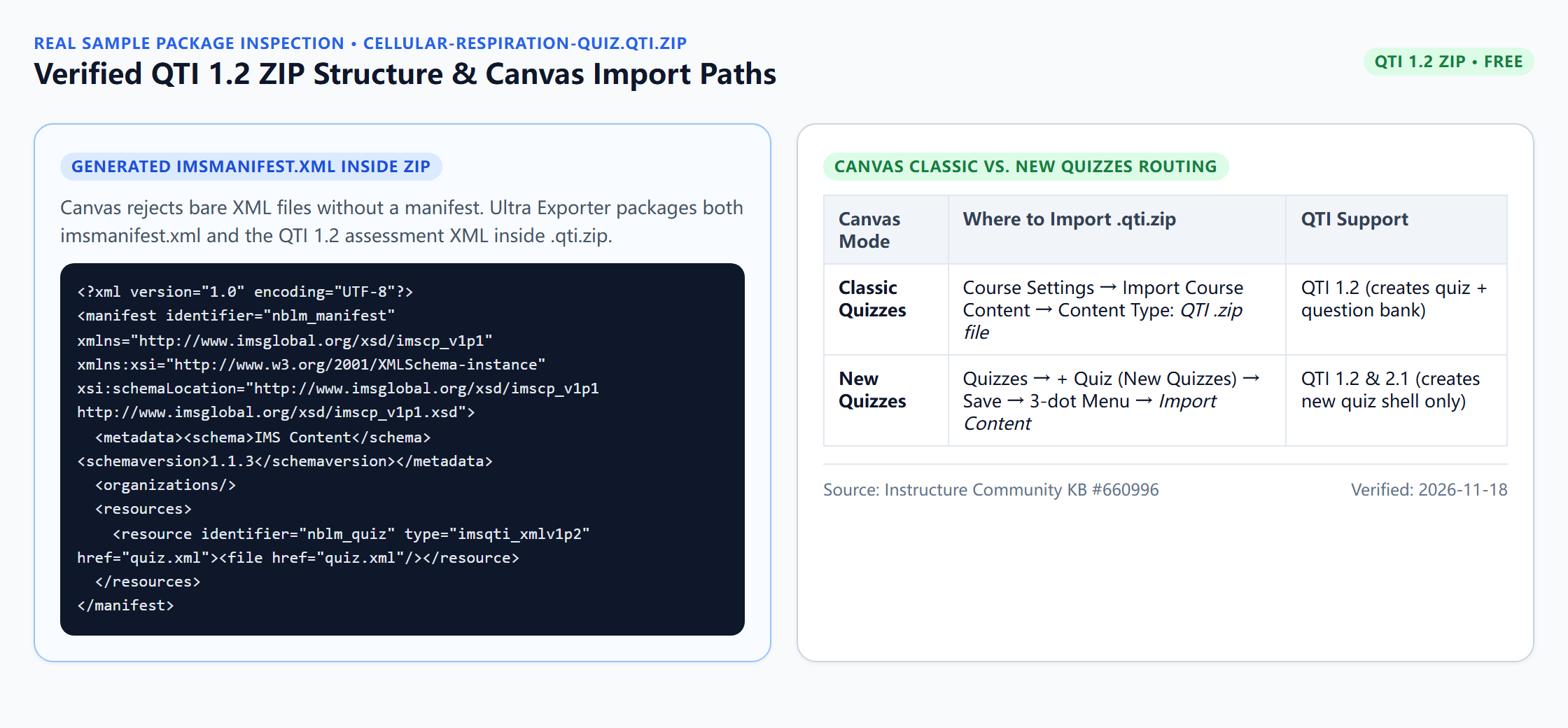
.qti.zipon macOS or Windows. - For Classic Quizzes (or migrating to New Quizzes during course import), open Settings -> Import Course Content, pick QTI .zip file, and check Import existing quizzes as New Quizzes if your course uses New Quizzes.
- Alternatively inside a blank New Quiz (Build screen), open the top-right three-dots menu -> Import Content and select the
.qti.zip. - Check Jobs after ~30 seconds; if an error shows, verify that the ZIP root contains
imsmanifest.xmlusingunzip -l.
What to know
- Canvas expects
imsmanifest.xmlat the exact root of the.ziparchive, not nested insidemy-quiz/imsmanifest.xml. - In Course Import, always select Content Type =
QTI .zip file, notCanvas Course Export PackageorCommon Cartridge. - Classic Quizzes and New Quizzes use two slightly different import screens (Instructure KB #660996).
Downloadable verified test files
Google changes these menus often. The item's own menu in your notebook shows what is built in today.
Plan requirement
Free, with no daily export quota and no website account needed. Pro covers the extension only; it does not include a Google subscription or raise NotebookLM / Gemini Notebook's own limits. Current prices are on the pricing page.
Follow-up questions
Can I preview or edit questions before uploading the ZIP to Canvas?
Edit questions by exporting to Word/GIFT first, or edit inside Canvas after import. Re-zipping the XML folder manually in macOS Finder wraps it in a subfolder and breaks Canvas manifest detection.
Does Ultra Exporter output QTI 1.2 or QTI 2.1?
Ultra Exporter generates a QTI 1.2 package with a root imsmanifest.xml, which Canvas supports across both Classic Quizzes and New Quizzes imports.
Why did my QTI upload complete with zero questions?
That usually means Content Type was set to Common Cartridge instead of QTI .zip file, or an older custom script omitted item choice identifiers.
Where do New Quizzes imports appear?
Imports created through the New Quizzes Build menu populate that specific quiz directly; course-level Settings imports create a quiz item under Assignments / Quizzes.
Verified sources & external references
- How do I import quizzes from QTI packages? — Instructure Canvas Communityplatform
Covers QTI 1.2 package structure and Classic vs. New Quizzes import paths.
- How do I import a quiz from a QTI package in New Quizzes? — Instructure KB #660996platform
Details the New Quizzes three-dot Import Content flow and QTI 1.2/2.1 compatibility boundaries.
Complete workflow guide
How to Export NotebookLM Quizzes to Moodle XML, Canvas QTI 1.2, Google Forms, Kahoot & PDF
NotebookLM has no native quiz download button. Export single quizzes free in 19 formats—including Moodle XML, GIFT, Aiken, Canvas QTI 1.2 ZIP, Kahoot, Google Forms, Word & PDF—or build Teaching Packs with Pro.
Related guides
NotebookLM quizzes run only in the browser and have no export. With NotebookLM Ultra Exporter, open the quiz, click Export and choose a target: Word or PDF.
Yes. NotebookLM Ultra Exporter exports a NotebookLM quiz as a QTI 1.2 ZIP package for free.
For Canvas and most university LMS platforms, QTI 1.2 is the most broadly compatible export target because both Canvas Classic Quizzes and Canvas New Quizzes.
Open the Audio Overview in the Studio panel, open its menu and choose Download. NotebookLM saves the audio file to your computer, one overview at a time.
Open the finished Video Overview in the Studio panel and use its download option to save the video file.
For one note or report, use the built-in option in its menu to send it to Google Docs. For chats, several notes, or anything the built-in option does not.
NotebookLM has no print layout, so printing the page gives a cropped screenshot of the app. Export the note or report to PDF first, then print the PDF.
You cannot by copy and paste: the numbered citation chips in NotebookLM are interactive elements, so they vanish from pasted text. Export instead.