QUESTIONS · WORKING WITH OTHER TOOLS
How do I compare ChatGPT and Claude answers using NotebookLM?
Direct answer
Use NotebookLM Ultra Exporter’s free Quick Capture on your ChatGPT tab and Claude tab to send both conversations into the same NotebookLM notebook alongside your primary papers, then ask NotebookLM to map where the two models agree, contradict each other, or diverge from your source documents with clickable citations.
Best suited for
Researchers, architects, and product analysts cross-checking reasoning from ChatGPT, Claude, Gemini, and DeepSeek against primary PDF sources inside one grounded notebook
Prerequisites
- Open ChatGPT and Claude conversation tabs in desktop Chrome
- Ultra Exporter installed (Quick Capture for single chats is free; bulk history import is Pro)
What to do
- Install NotebookLM Ultra Exporter in desktop Chrome, then refresh any open NotebookLM (Gemini Notebook) tab.
- Create a dedicated NotebookLM notebook and upload your primary PDFs, specs, or articles first.
- Open your ChatGPT session in Chrome -> click Ultra Exporter -> Quick Capture -> Add to NotebookLM (label it clearly, e.g.,
ChatGPT Draft). - Repeat on your Claude (or Gemini/DeepSeek) session -> send into the same notebook.
- Ask NotebookLM: *"Create a table comparing ChatGPT Draft vs. Claude Draft against our primary PDF sources; highlight unsupported claims and missing nuances."* Then export the resulting matrix to Markdown, Excel CSV, or Word.
What to know
- Quick Capture extracts clean prompt/reply Markdown from ChatGPT, Claude, Gemini, DeepSeek, Kimi, and Doubao directly from the loaded DOM (free within 20 daily imports).
- Always scroll long threads once so older turns mount before capturing, or use Pro Bulk AI Chat History Import to pull active conversation branches (
current_node). - Keep primary source PDFs in the same notebook so NotebookLM verifies AI claims against original evidence rather than comparing two ungrounded opinions.
Do not mistake consensus between two AI chats for ground truth
- Two language models can share the same misconception unless anchored to primary documents. Pair captured AI chats with verified papers or official specs inside NotebookLM.
Google changes these menus often. The item's own menu in your notebook shows what is built in today.
Plan requirement
The basics are free; the advanced options listed on this page need Ultra Exporter Pro. Pro covers the extension only; it does not include a Google subscription or raise NotebookLM / Gemini Notebook's own limits. Current prices are on the pricing page.
Follow-up questions
Can I also capture Gemini, DeepSeek, Kimi, or Doubao conversations the same way?
Yes — Quick Capture extracts clean structured Markdown turns across ChatGPT, Claude, Gemini, DeepSeek, Kimi, and Doubao for free.
How does Pro bulk chat import handle regenerated answers in ChatGPT or Claude?
When you regenerate turns, ChatGPT and Claude store forked branches. Pro bulk import traces your active branch cleanly so abandoned drafts do not pollute your notebook.
Should I paste ChatGPT share links into NotebookLM instead?
Share links frequently get blocked by automated crawlers or fail silently. Capturing from your open Chrome tab extracts code blocks, tables, and turn labels reliably.
How do I save the final comparison table for my team?
Export the generated NotebookLM Data Table to free CSV/TSV for Excel, or export the synthesis note to Markdown (free) or Word/PDF.
Verified sources & external references
- NotebookLM Help Center & Source Limits — Google Supportofficial
Covers 50 free / up to 600 paid source limits, 500k words / 200 MB per source, and flat notebook homepage behavior.
- Cross-LLM research & ChatGPT archiving workflows — r/notebooklmcommunity
Power users consolidate brainstorming threads from ChatGPT and Claude into NotebookLM for cited synthesis.
Complete workflow guide
How to Export Full NotebookLM Chat History with Citations (Markdown, Word, PDF & LaTeX)
NotebookLM has no native “Export chat” button. Select specific Q&A turns, preserve numbered source citations, edit before export (Pro), and save locally to Markdown, LaTeX, HTML, JSON, TXT, Word or PDF.
Related guides
NotebookLM cannot open a ChatGPT conversation from its link. Either copy the conversation and paste it as a text source, or open the chat with NotebookLM.
To save a ChatGPT conversation as a NotebookLM source, open the chat and click the NotebookLM Ultra Exporter icon.
To save a Claude conversation as a NotebookLM source, open the chat and click the NotebookLM Ultra Exporter icon.
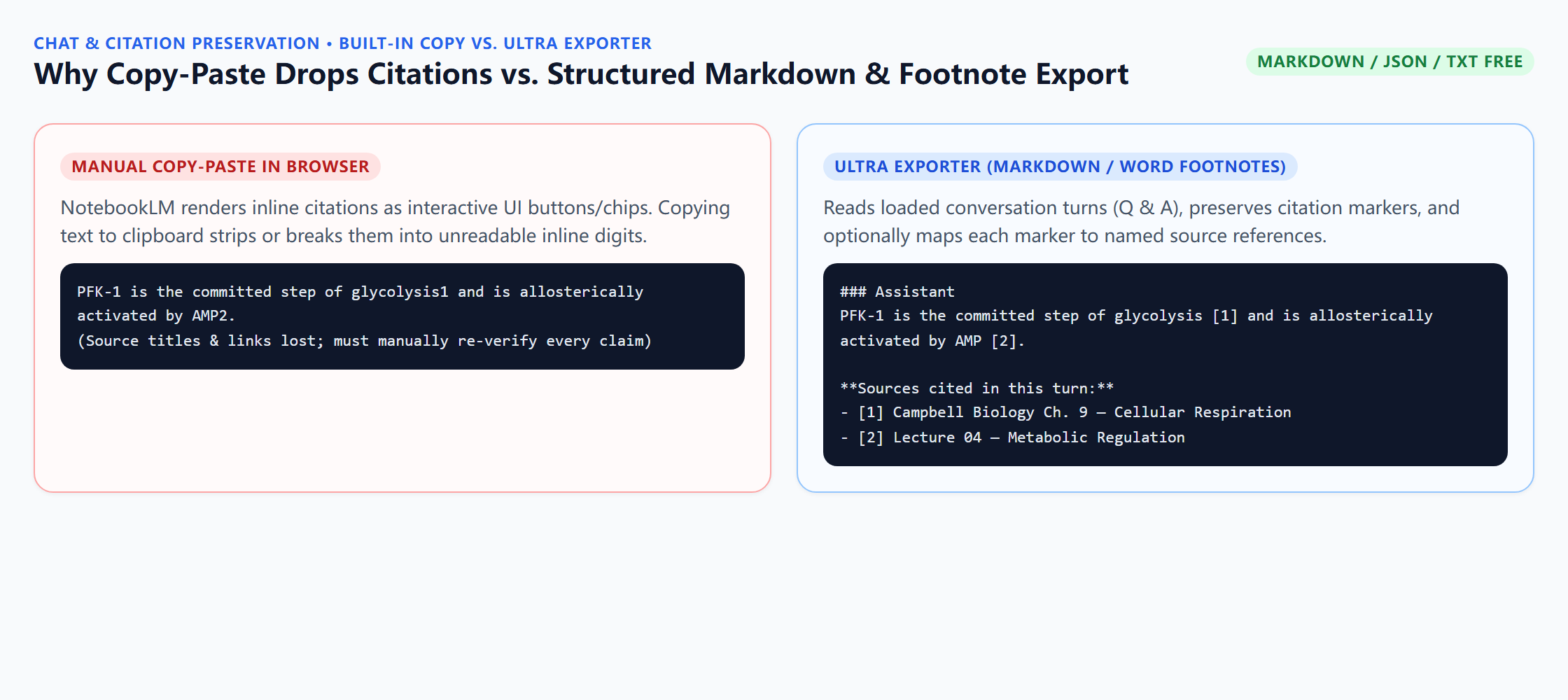
How to Export NotebookLM chat history to Markdown. You get the selected questions and answers as a .md file with citation markers kept, with no daily limit.
Keep Zotero as your authoritative bibliography database and use NotebookLM as your scoped reading workspace: upload a thematic cluster of 10–40 paper PDFs.
Three ways. Play the overview in the NotebookLM mobile app; download the audio file on a computer and copy it to the phone; or publish overviews to a private.
There is no official connection, so you move Markdown in both directions. Out: export notes, chats and mind maps from NotebookLM as Markdown, or archive the.
NotebookLM and Notion do not connect directly. Export from NotebookLM as Markdown and import or paste it into Notion, which converts headings, lists, tables.