QUESTIONS · WORKING WITH OTHER TOOLS
How do I build a literature notes workflow with NotebookLM and Zotero?
Direct answer
Keep Zotero as your authoritative bibliography database and use NotebookLM as your scoped reading workspace: upload a thematic cluster of 10–40 paper PDFs into one NotebookLM notebook, synthesize themes and gaps with clickable passage checks, export notes to Markdown/Word with footnotes, and export the notebook’s source list as BibTeX (.bib) or RIS (.ris) to reconcile references inside Zotero.
Best suited for
Graduate students, PhD researchers, and literature review authors pairing Zotero’s citation database with NotebookLM’s multi-paper synthesis
Prerequisites
- Zotero Desktop installed with your reference PDFs
- Ultra Exporter installed for BibTeX/RIS export, Markdown/Word synthesis export, and optional Obsidian archiving
What to do
- Install NotebookLM Ultra Exporter in desktop Chrome, then refresh any open NotebookLM (Gemini Notebook) tab.
- Export or locate 15–30 topic-scoped PDFs from your Zotero storage folder and upload them via Ultra Exporter Import Center -> Local Files & Folders (or import directly by DOI / arXiv / PubMed).
- Run structured synthesis prompts inside NotebookLM (methodology comparisons, conflicting findings, research gaps) and verify every inline citation chip directly against the cited PDF page.
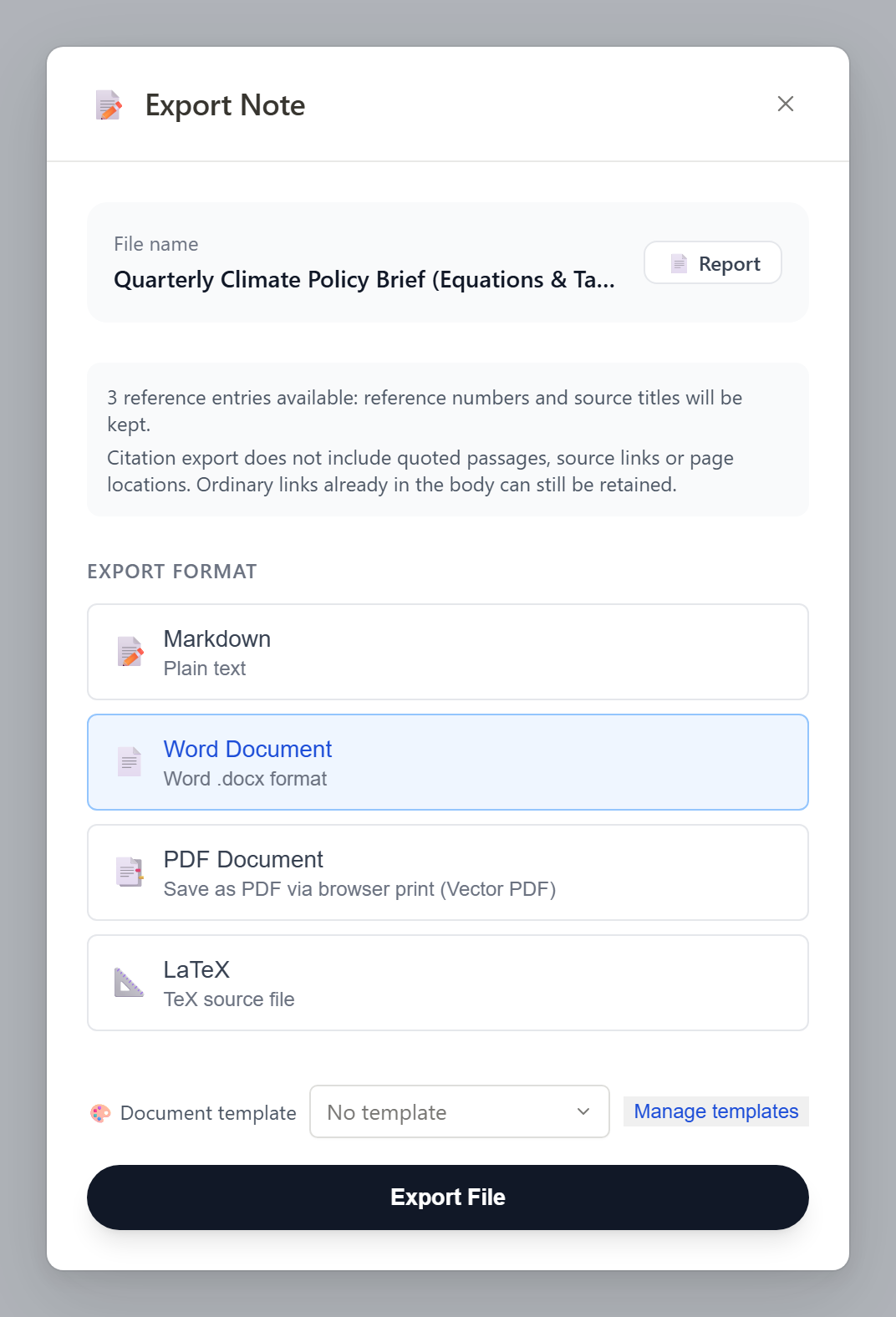
- Export your verified literature notes to Markdown (free, unlimited) or Word (.docx) with footnotes enabled.
- In the Sources panel, export BibTeX (.bib) or RIS (.ris) and import into Zotero to complete author, year, volume, and DOI metadata cleanly.
What to know
- Use one NotebookLM notebook per sub-question or literature theme (e.g.,
2026-RAG-Eval) rather than dumping 300 unrelated PDFs into one workspace. - NotebookLM exposes titles and URLs/filenames, not always full author/journal/DOI fields — Ultra Exporter’s BibTeX and RIS exports honestly leave unknown fields blank instead of inventing fake authors or DOIs.
- Export literature notes to free Markdown for Obsidian/Logseq or Word (.docx) with footnotes for drafting, then attach finalized Zotero citations using Zotero’s Word or LaTeX plugin.
Downloadable verified test files
Why you should still complete metadata inside Zotero
- NotebookLM’s internal source rows do not provide full BibTeX author/journal/page fields. Ultra Exporter preserves exact titles, links, and access dates cleanly — run Zotero’s built-in "Retrieve Metadata" or DOI lookup before formatting a formal thesis bibliography.
Google changes these menus often. The item's own menu in your notebook shows what is built in today.
Plan requirement
The basics are free; the advanced options listed on this page need Ultra Exporter Pro. Pro covers the extension only; it does not include a Google subscription or raise NotebookLM / Gemini Notebook's own limits. Current prices are on the pricing page.
Follow-up questions
Can NotebookLM connect directly to my Zotero cloud library?
No — NotebookLM has no native Zotero sync. Upload PDFs from your local Zotero folder (or import via DOI/arXiv/PubMed) and move source records back to Zotero via BibTeX or RIS.
Should I export BibTeX (.bib) or RIS (.ris) for Zotero?
Zotero imports both cleanly. Choose BibTeX if you also write in Overleaf/LaTeX or JabRef; choose RIS if your lab shares references with EndNote or Mendeley.
Does Ultra Exporter fabricate missing authors or publication years?
Never. Where NotebookLM only exposes a filename or webpage title, Ultra Exporter records no-author/no-date entries with the access date so nothing false sneaks into your thesis.
Can I keep my literature notes synced into an Obsidian vault too?
Yes — export individual notes as free Markdown or use Pro Folder Sync to maintain an Obsidian-style folder with YAML properties and index.md wiki-links.
Verified sources & external references
- NotebookLM Help Center & Source Limits — Google Supportofficial
Covers 50 free / up to 600 paid source limits, 500k words / 200 MB per source, and flat notebook homepage behavior.
- Zotero BibTeX / RIS Import Documentation — Zotero Docsplatform
Covers importing standard `.bib` and `.ris` files and enriching PDF/DOI metadata inside Zotero.
Complete workflow guide
How to Export Full NotebookLM Chat History with Citations (Markdown, Word, PDF & LaTeX)
NotebookLM has no native “Export chat” button. Select specific Q&A turns, preserve numbered source citations, edit before export (Pro), and save locally to Markdown, LaTeX, HTML, JSON, TXT, Word or PDF.
Related guides
NotebookLM does not connect to Zotero, but NotebookLM Ultra Exporter builds a bibliography from the sources in a notebook and outputs BibTeX or RIS, which.
Both carry a NotebookLM source list into a reference manager. BibTeX is the native format of LaTeX and Overleaf and is read by Zotero, JabRef and Paperpile.
Export with footnotes enabled via Ultra Exporter so every claim retains its numbered source marker, open the cited source file directly to confirm quotes and.
PhD students use one notebook per chapter or question, so answers stay grounded in the right papers.
Three ways. Play the overview in the NotebookLM mobile app; download the audio file on a computer and copy it to the phone; or publish overviews to a private.
There is no official connection, so you move Markdown in both directions. Out: export notes, chats and mind maps from NotebookLM as Markdown, or archive the.
NotebookLM and Notion do not connect directly. Export from NotebookLM as Markdown and import or paste it into Notion, which converts headings, lists, tables.
Cite the original documents, not NotebookLM. Use the citations in an answer to find the passage, confirm it in the source, and reference that source in your.