QUESTIONS · SOURCES AND LIMITS
How do I collect research across 20+ open browser tabs into NotebookLM?
Direct answer
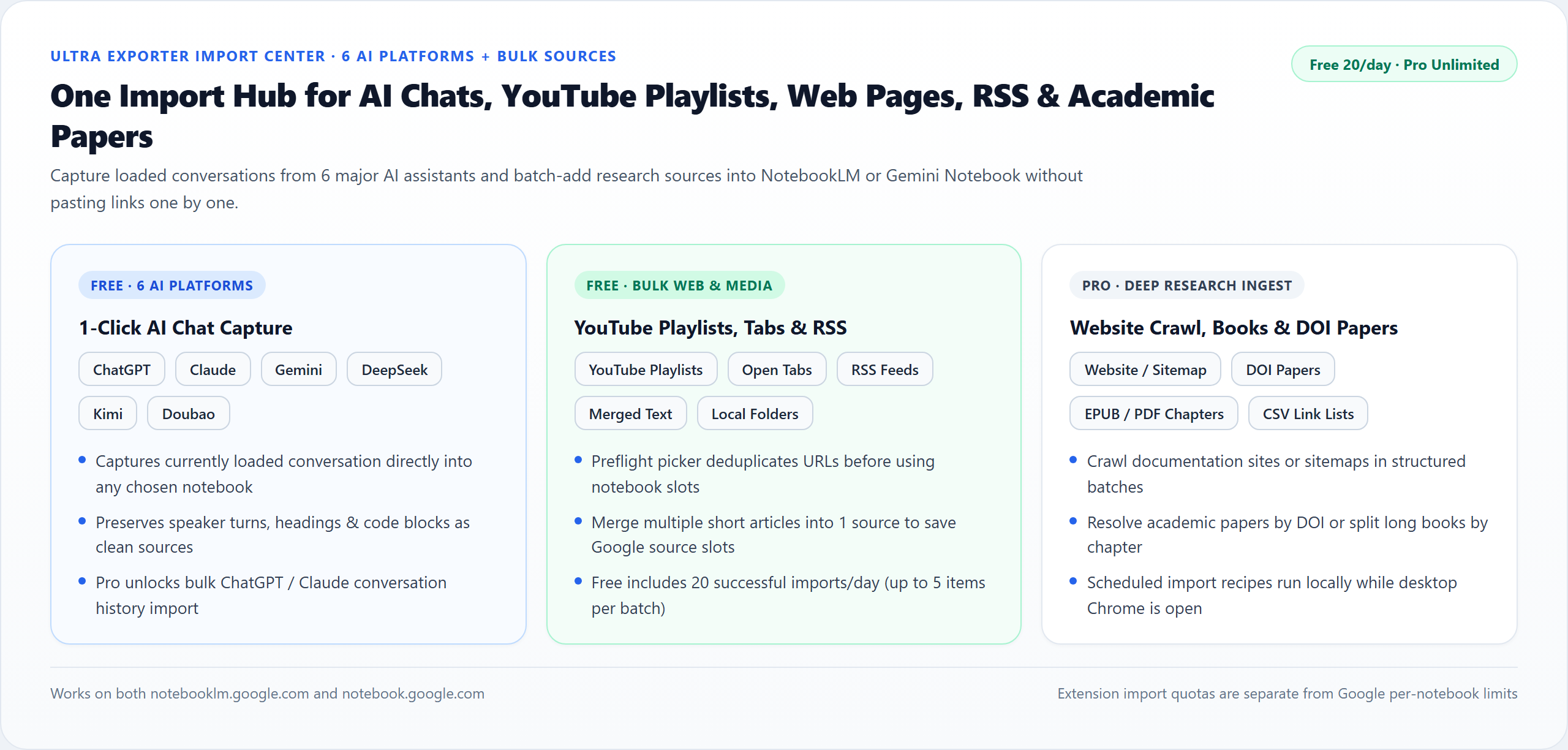
Open Ultra Exporter’s Open Tabs importer in desktop Chrome to list every open tab in the current window, uncheck duplicates or dashboards, and send selected pages in link mode or readable browser text mode. Free imports up to 5 tabs per batch (20/day); Pro imports all selected tabs cleanly without batch limits.
Best suited for
Analysts, journalists, and students researching across 15–40 open Chrome tabs who want one clean batch import instead of copying URLs manually
Prerequisites
- Research tabs open in your active Chrome window
- Awareness of your NotebookLM per-notebook source limit (50 free / up to 600 on higher tiers)
What to do
- Install NotebookLM Ultra Exporter in desktop Chrome, then refresh any open NotebookLM (Gemini Notebook) tab.
- Click the Ultra Exporter icon and choose Import Open Tabs (or open Import Center -> Bulk URLs).
- Uncheck Chrome settings, blank tabs, or noisy cookie-wall tabs; pick Link Source for static public URLs or Page Text for signed-in docs.
- Select your target notebook (or create a fresh one) and start the import — Free runs 5 per batch (20/day); Pro removes caps.
What to know
- Sending browser-extracted readable text succeeds even on login-walled portals and JS documentation tabs where Google’s crawler fails.
- Trimming irrelevant tabs inside the selector avoids clogging your notebook’s 50-source cap with search result pages.
- Paste a raw URL list in Bulk URLs if your team already collected links in a spreadsheet or Slack thread.
Preventing source-limit shock on 50-source notebooks
- If you already have 35 sources in a notebook and select 20 open tabs, standard free NotebookLM accounts will block once 50 sources are reached.
- For deep multi-article digests, use Ultra Exporter’s Merge Sources helper or split research by subtopic.
Google changes these menus often. The item's own menu in your notebook shows what is built in today.
Plan requirement
The basics are free; the advanced options listed on this page need Ultra Exporter Pro. Pro covers the extension only; it does not include a Google subscription or raise NotebookLM / Gemini Notebook's own limits. Current prices are on the pricing page.
Follow-up questions
Does Import Open Tabs work across multiple Chrome windows?
It reads tabs cleanly inside your active Chrome window; move cross-window research tabs into one window first or paste URLs into Bulk URLs.
Should I import open tabs as Links or Page Text?
See Link source vs Text source: use Page Text whenever tabs require login cookies or fail Google’s crawler.
How many tabs can Free import at once?
Free accounts can import up to 5 items per batch and up to 20 successful source imports per local day. Pro lifts both limits.
What happens if one tab in a 20-tab batch fails?
Ultra Exporter reports per-item success and error states rather than silently failing the whole queue.
Verified sources & external references
- NotebookLM Help Center & Source Limits — Google Supportofficial
Covers 50 free / up to 600 paid source limits, 500k words / 200 MB per source, and flat notebook homepage behavior.
Related guides
To turn a research session into a notebook, open the NotebookLM Ultra Exporter import center, choose browser tabs, tick the tabs you want and import them.
NotebookLM adds website sources one at a time. With NotebookLM Ultra Exporter, paste a list of URLs, one per line or mixed into text, into the import center.
A link source asks NotebookLM to fetch a web page itself; it keeps the URL and works for public pages.
NotebookLM fetches links from Google servers, not from your browser. A page fails when it needs a login, sits behind a paywall, blocks automated requests, or.
Google documents a limit of 50 sources per notebook on the free tier, with each source limited to 500,000 words or 200 MB.
You cannot raise the limit, but you can fit more into it. Merge related sources into one text source, combine small text files before importing, and split.
NotebookLM accepts website links through its add-source dialog, a few at a time. To import a long list, paste the URLs, one per line or mixed into text, into.
NotebookLM takes YouTube videos one link at a time and does not expand a playlist. Paste the playlist URL into the YouTube import of NotebookLM Ultra.